
/Classic vs. editor 2.0
More alignment! (Advanced Grid)
There’s another way to align widgets in Editor 2.0—by using a layout element unique to Editor 2.0 called the Advanced Grid.
To get a better understanding of how the Advanced Grid works, let’s compare it to the experience in the Classic Editor.
You’ll notice that while the experience feels somewhat familiar, it’s not exactly the same—and it requires a bit more attention to detail.
Should I use a column or advanced grid?
Columns
Advanced Grids
Columns are your go-to tool for clean, hassle-free layouts. You can divide any section into two, three, or more columns and drag in elements like text, images, or buttons. The Editor automatically handles spacing and alignment within each column, giving you a responsive layout without the need for manual adjustments. It's an efficient way to build content when overlapping or complex positioning isn’t required.
Use Columns when:
▸
You’re laying out content in an organized, linear structure.
▸ You want a layout that’s simple to build and responsive out of the box.
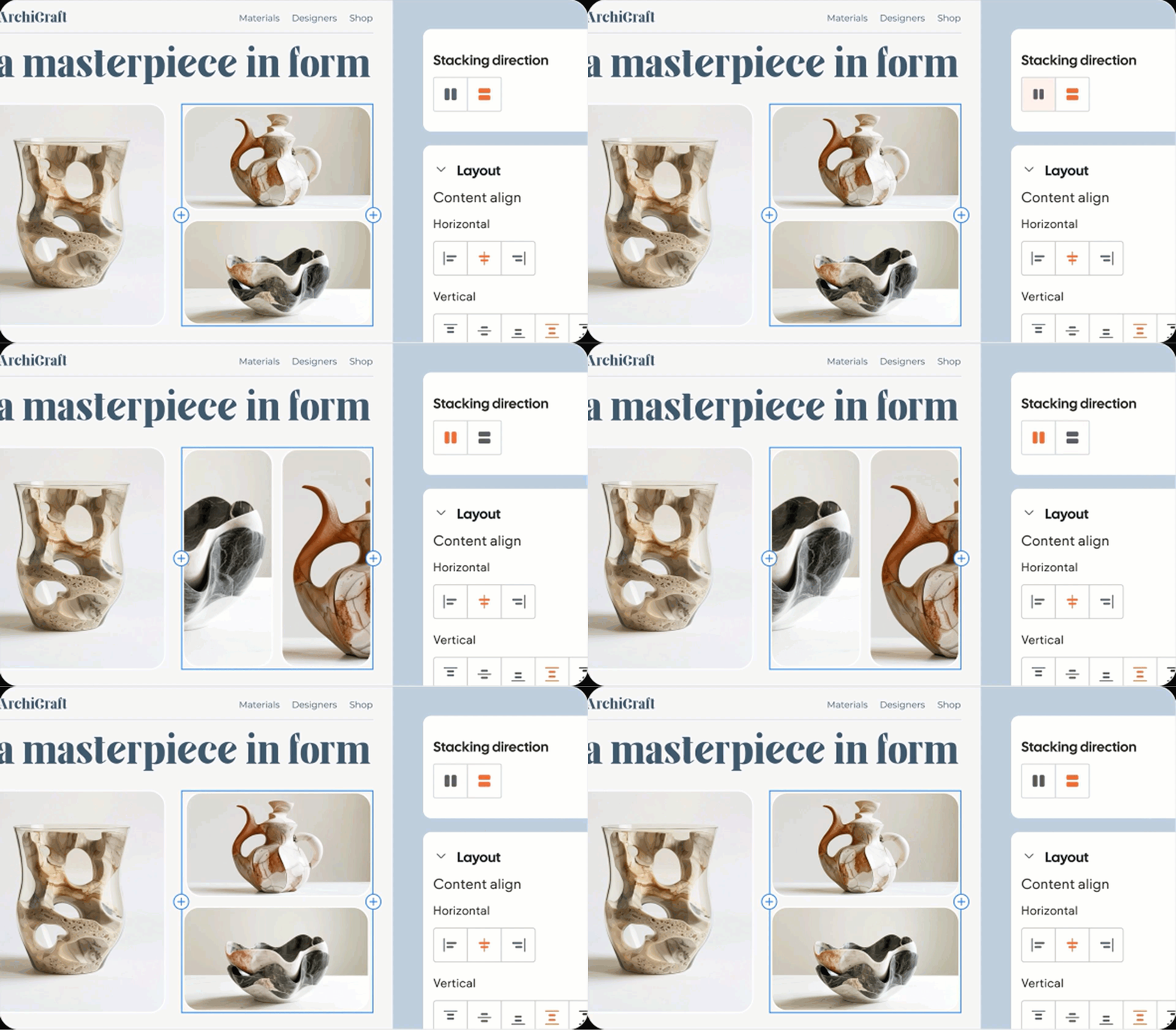
No need to worry about the individual placement or spacing of a widget. Let the editor take care of that for you!
▸
You’re designing something that doesn’t require elements to overlap or break out of their containers.
Advanced Grids give you much more control over the positioning of elements. Think of them like a flexible canvas where you can define your own rows and columns and place items wherever you want within that space.
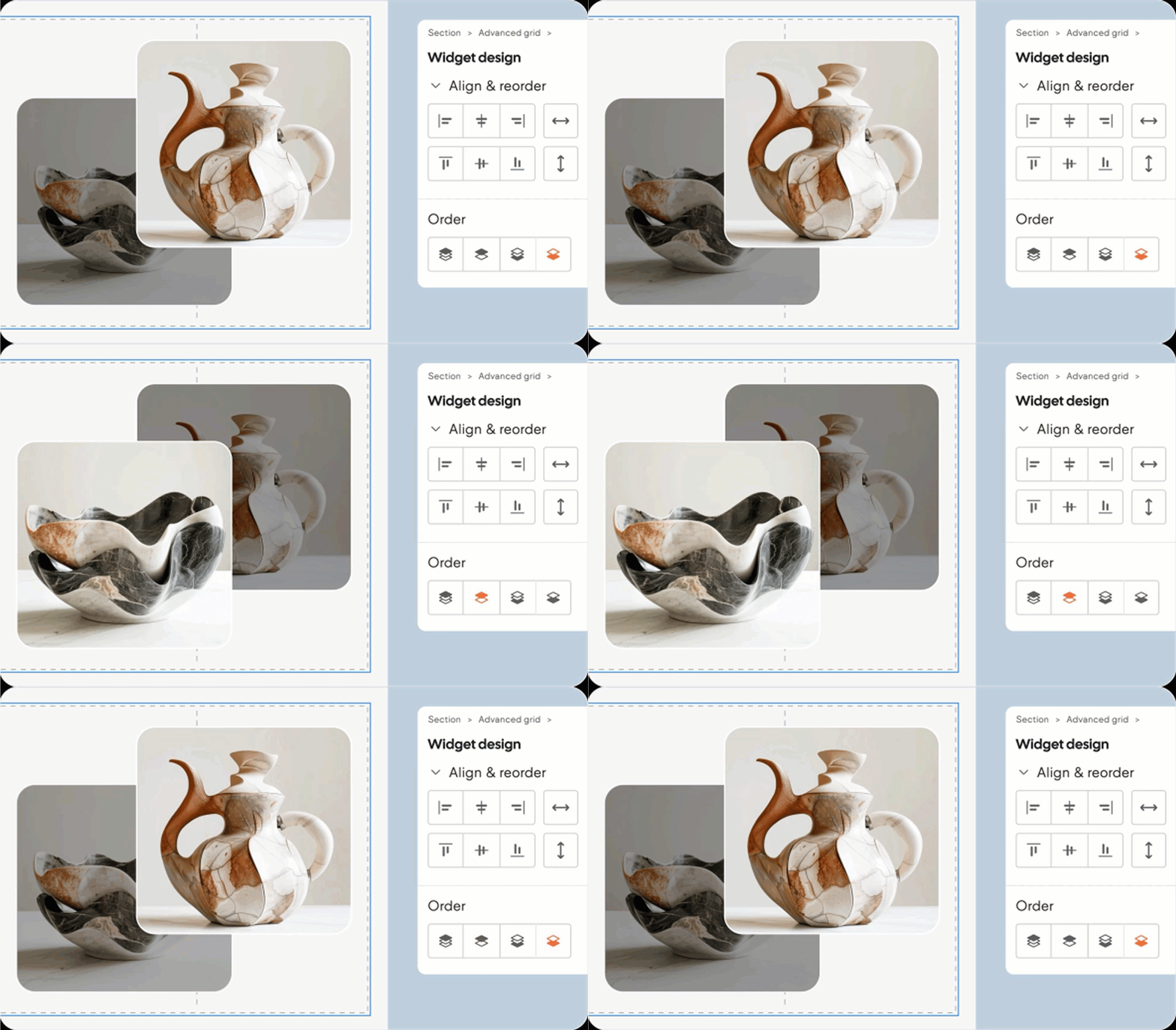
The real power of Advanced Grids comes into play when you need more complex layouts, especially overlapping elements.
Use Advanced Grids when:
▸
You want elements to overlap or break outside the standard flow.
▸ You need precise placement and alignment beyond what Columns can offer.
Important
Advanced Grids give you more design control than Columns—but with that control comes responsibility. Unlike Columns, where alignment and spacing are mostly automatic, Advanced Grids require you to position each widget manually. This flexibility lets you fine-tune your layout, but it also means staying precise to keep things clean and consistent.
Note
Want to take a deeper dive into Advanced Grids?
Check out our course on how layouts with an advanced grid work in Editor 2.0.