
/INSTRUCTIONS
Your turn
Customize the Footer
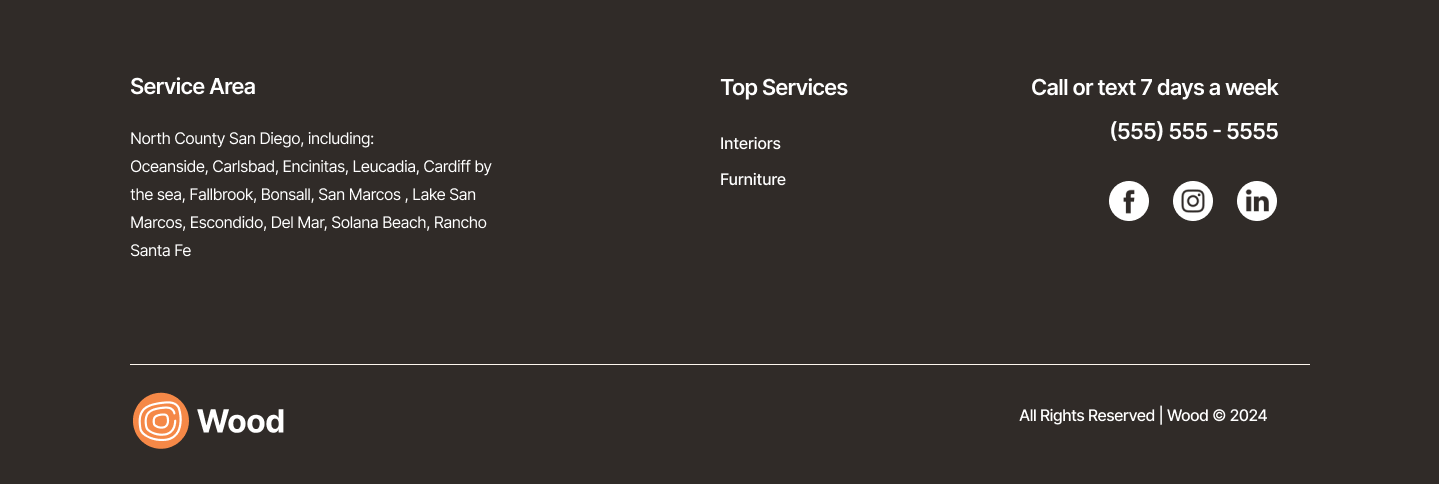
Follow the instructions below to recreate this section.
Step 1: Replace the logo and adjust formatting in the footer
- Replace Logo Image: Click on the existing logo image in the footer. In the design panel, select Replace Image and select the new logo image.
- Update Copy and Formatting: Click on text widgets in the footer to update copy such as business name, address, contact information, and copyright details. Use formatting options in the text editor to ensure consistency with the website's design.
Step 2: Add navigation links and social media icons
- Configure Navigation Links: Add navigation links to top services or other relevant pages. Go to the existing anchor links on the Our Services page in the template and edit the existing anchors (ex: Lighting>Furniture, Wiring>Interiors). Then, click on the navigation widget in the footer to edit and update the link destinations.
- Connect Social Media Icons:
Add social media icon widgets to the footer section. Link each icon to your respective social media profiles. Customize the appearance and alignment of social media icons using the design panel.
Updating the footer with consistent navigation and social links enhances user engagement and provides easy access to important resources. Here's what this section will look like: