
Product Options and Product Variants
Transcript
Helpful Links
Product Options and Variants
If you're selling products that come in different sizes, colors, styles, or other variations, you're going to need to create product variants in your store to allow shoppers to make their selections.
Let's say we're selling bags online. Each bag comes in a different model, different size, and different color.
Things like color, size, and model are all product options.
And when you mix and match these product options together, you get a product variant.
Configuring Product Variants
To configure product variants, you'll first need to add your product options.
Head over to the Product Details page in the product catalog and search for Product Options.
You can search from a list of predefined product options, or enter your own.
Once you've set your product option, you'll then need to enter the
values.
The values are the choices your shoppers will be able to pick from.
Repeat this step for each product option you plan to offer.
Product Variants Panel
You'll notice a new panel appear right below once a product option is created.
This is the
Product Variants panel, and this is where you'll be able to manage each of your product variants.
You can assign each variant its own image, set a price difference from the base product, and define other details.
Preview Your Work
Once you're finished setting up your product variants, head back to the editor to preview your work.
Help Center
Limits on Product Options and Variants
Limits on Product Options and Variants depend on your Store plan.
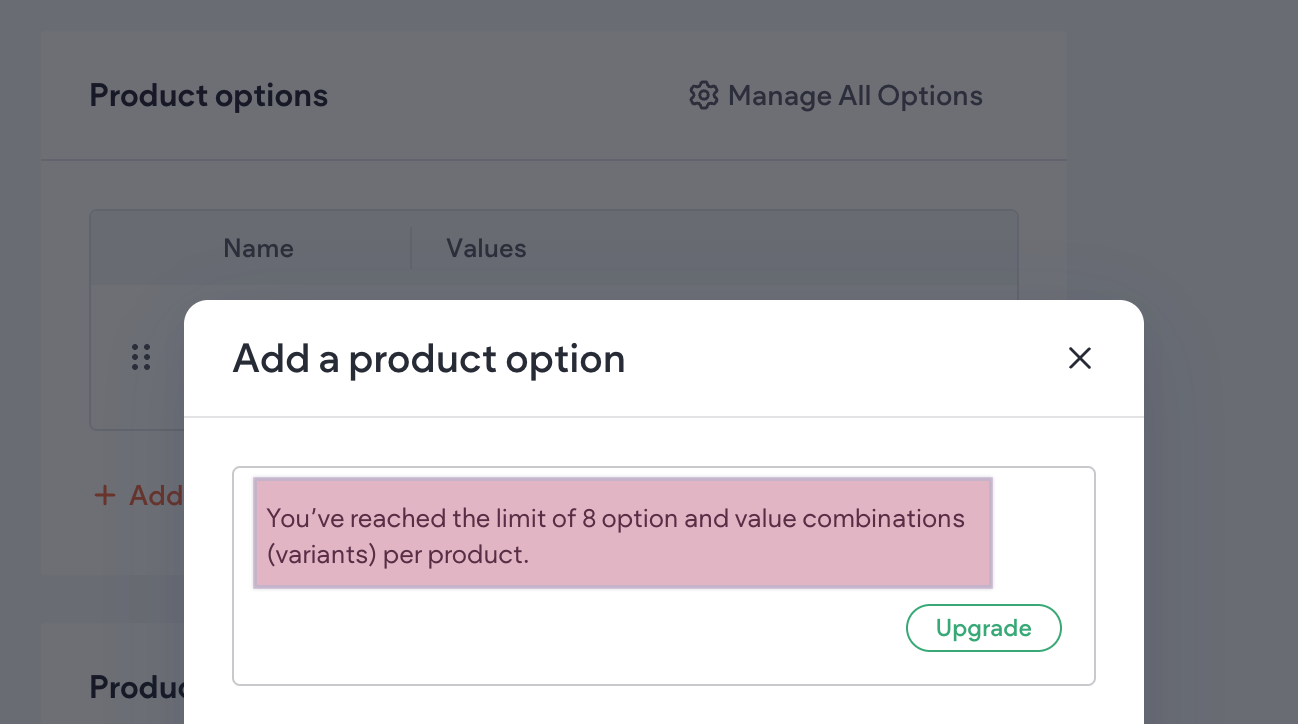
How many Product Options can I create?
Let's say you're on a Standard Store Plan. If the Standard Store plan allows up to 8 variants, then the number of product options you can have depends on how many combinations those options create. If that's doesn't make sense, let's look at an example.
Consider the example in the video. Since we have 3 Product Options:
Option 1: Color
Option 2: Size
Option 3: Style (Model)
And each Product Option has only two values:
Color: Orange or Green
Size: Small or Signature
Style: Classic or with zipper
What are all the possible combinations you can have? This is starting to feel like a math lesson...
To calculate how many options you can create
You'll need to multiply the number of values in each option, and the final total must be 8 or fewer.
In our example, there are 3 Product Options, and each Product Option has 2 values:
2 colors × 2 sizes × 2 styles = 8 variants
Want to see another example?
Let's say we only have the following two Product Options this time:
Option 1: Color
Option 2: Size
And each Product Option has the following values:
Color: Orange or Green or Silver or White
Size: Small or Signature
This will also create 8 Product Variants:
4 colors × 2 sizes = 8 variants