/Classic vs. editor 2.0

Column Alignment

Two ways to align widgets within a column in Editor 2.0

Align at the widget level

Just like in Classic, you can align each widget on its own. Select the widget, then use the alignment options in the Design panel to position it as needed.

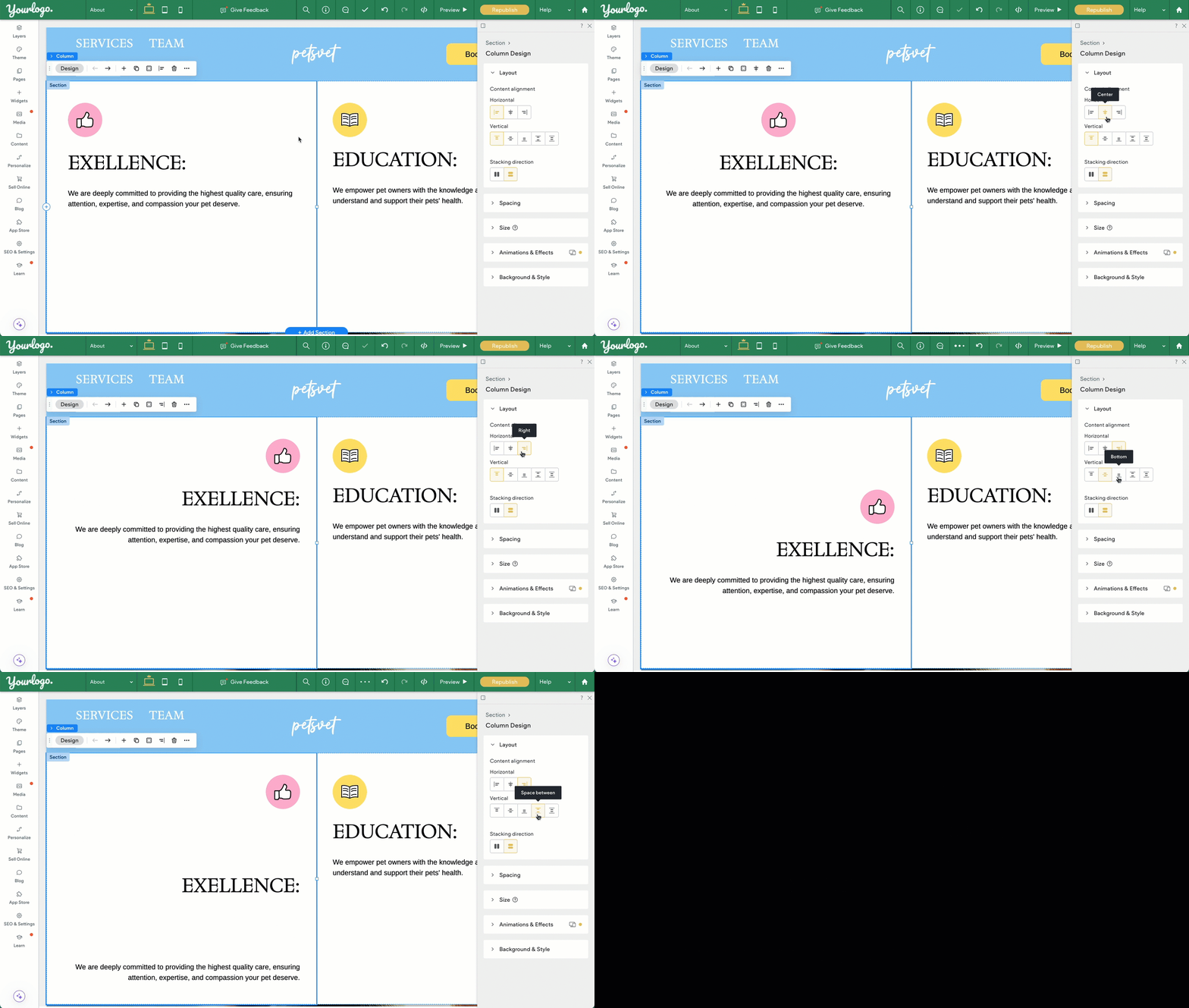
Align at the column level

One of the new features in Editor 2.0 is the ability to set alignment at the column level. When you do, all widgets inside that column will follow the same alignment. It’s a big time-saver when you want a consistent look without having to adjust each widget individually.

Note

Want to take a deeper dive into columns? Check out our course on how columns work in Editor 2.0.