
/PREPARING to build your ONLINE STORE
Your customer's shopping experience
When you add a store with the platform, you'll be creating what we call a
demo store. This pre-built store comes with several pre-made pages and small set of products to help you preview the default shopping experience and checkout flow.
Let's take a look at the default shopping experience your customers will see out of the box:
Transcript
Helpful Links
Tour the Demo Store's pages & widgets
Let’s add a new store to this website so we can see what comes out-of-the-box.
Know that all new stores come pre-populated with a sample set of products to help you understand the relationship between the pages and the functionality of the store-specific widgets.
This default experience that appears when you add a new store is what we call the "Demo Store." Once your store is added to your site, you'll have a set of new widgets you can use in your site and a new set of pre-built pages that use some of these special widgets like the Shopping Cart and Product Search widgets.
Let's look at each of these pages that come with the store.
Store Pages
The page that you land on when a new store is added is called the "Store Page." Think of this page as your storefront.
It's often the first page shoppers see when visiting your store.
Although the default demo store displays workout gear, you can modify the products as well as the text, images, and page layout for this page the same way you would modify any of your other pages.
Also, know that your Store Page may not appear in your site’s navigation by default. You may need to go and adjust the navigation settings to get the store link to appear.
Product Pages
The next page in our store pages list is the Product Page. This is one of the most important pages in your store.
Whenever a shopper clicks on a product, they’re taken to this page. You can think of it as a template: the content on each Product Page is dynamic, meaning it automatically updates based on the product a shopper selects.
Photos and product details are pulled directly from the Product Catalog page, which is where all product information is stored and managed within the editor. Know that when customizing this page, there are several additional store-specific widgets you can use to ensure you’re providing the information and shopping experience you want for your customers.
Category Pages
Next up, we’ve got the Category Page. This page also acts like a template. The products —or subcategories —that appear on this page will come from the list of categories and subcategories you add in your site’s dashboard. Any products that fall under a category will appear on that particular category’s page.
Sign-In Pages
Finally, we’ve got the Sign-In page. This page is used if you want to sell items on a recurring basis — like a subscription that automatically processes a purchase on a monthly basis. If you don’t sell products using that subscription model, you might not need this page. Just know it’s here if you need it.
Alright! We've toured the pages that come with your store. Once you've added a store to your site, your next step will be to go in and add at least a few of your own products.
Having your own products in the catalog will help you identify customizations you might want to make to your Product pages, Category pages, and your Storefront.
Important
We'll cover how to select an eCommerce template (or add a store to your existing site) in the next course. If you can't wait, no worries! Feel free to add a store to your site.
Just know that we don't recommend upgrading your store until you've configured your store and you're ready to connect to your payment gateway.
Leave the demo store in place while you set up all your products and page customizations.
Once you upgrade your store, it's much harder to preview the end-to-end checkout experience without actually completing a transaction.
Store pages
As mentioned in the video, when you add a store you're going to get several editable page types and new store-specific widgets to help get you started. We're going to introduce you to these now so you'll know what we're talking about when we reference these pages later.
Here are the editable pages that come with your new store:
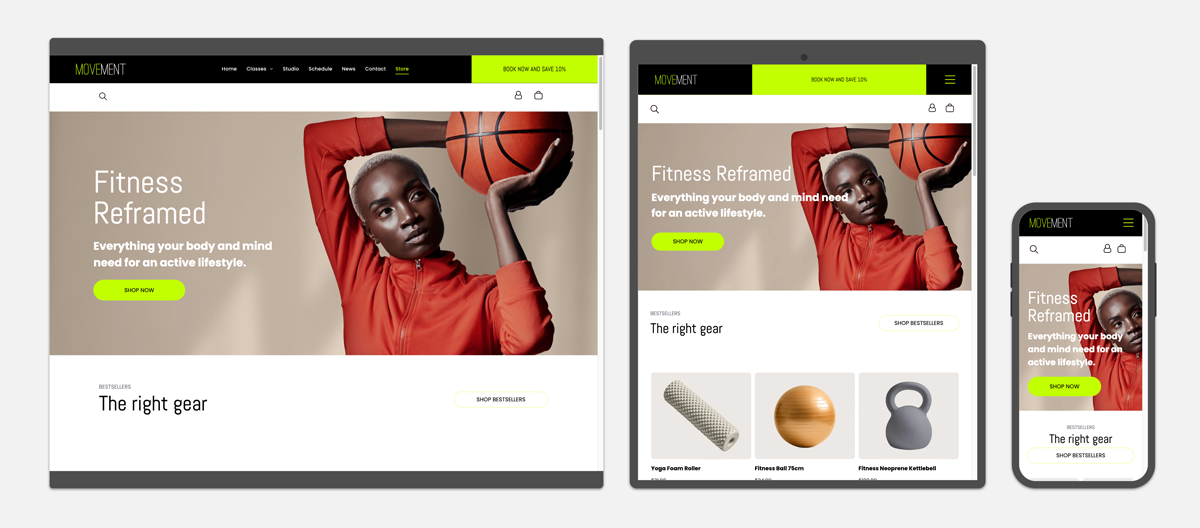
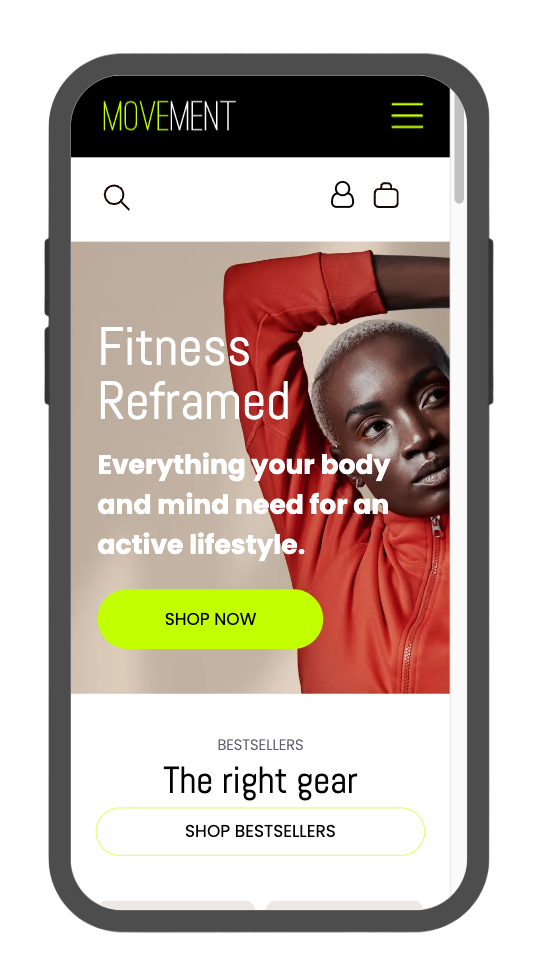
Store page
The store page is like your storefront: if a shopper clicks on "store" from your navigation, this is the page they land on.
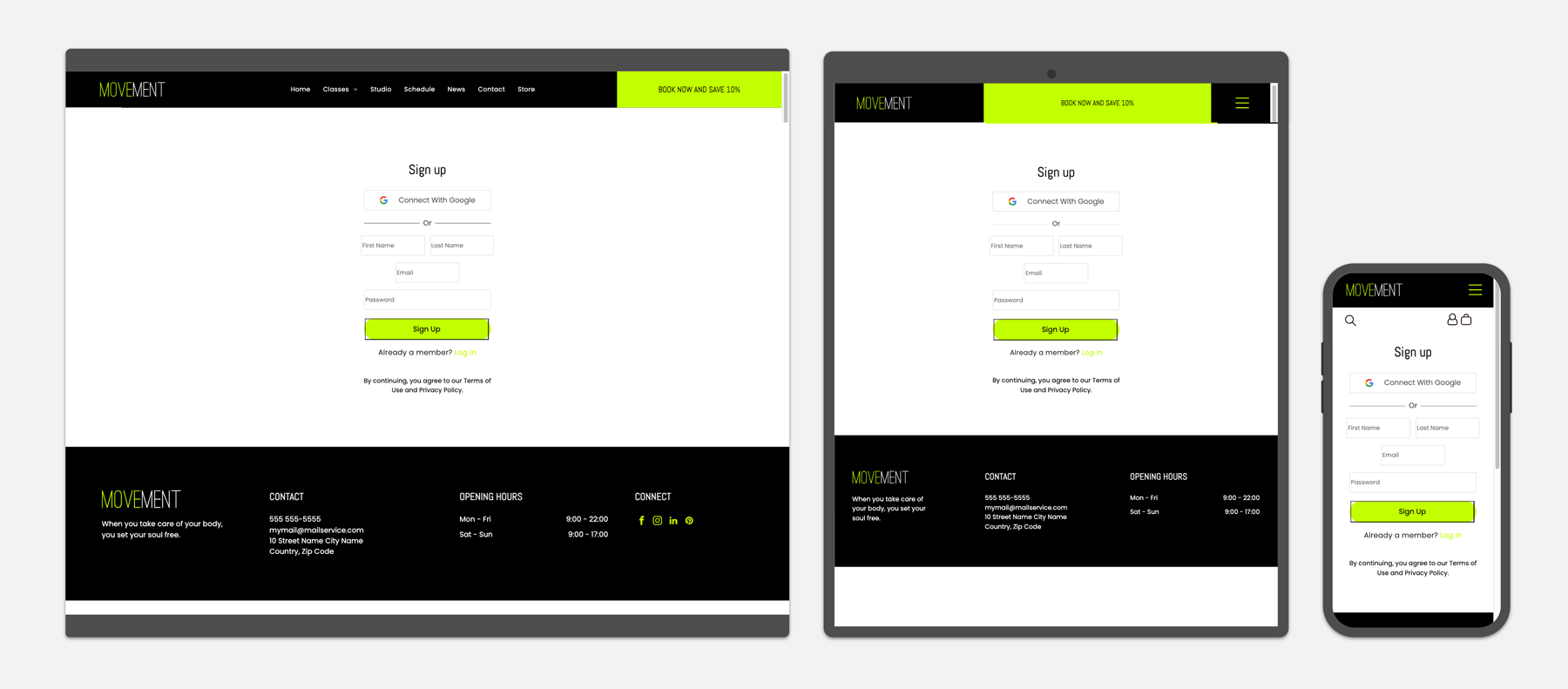
This page is often automatically added to your site's main navigation (depending on your navigation settings) and—like all the store pages—is already optimized for every breakpoint (mobile, tablet, and desktop).
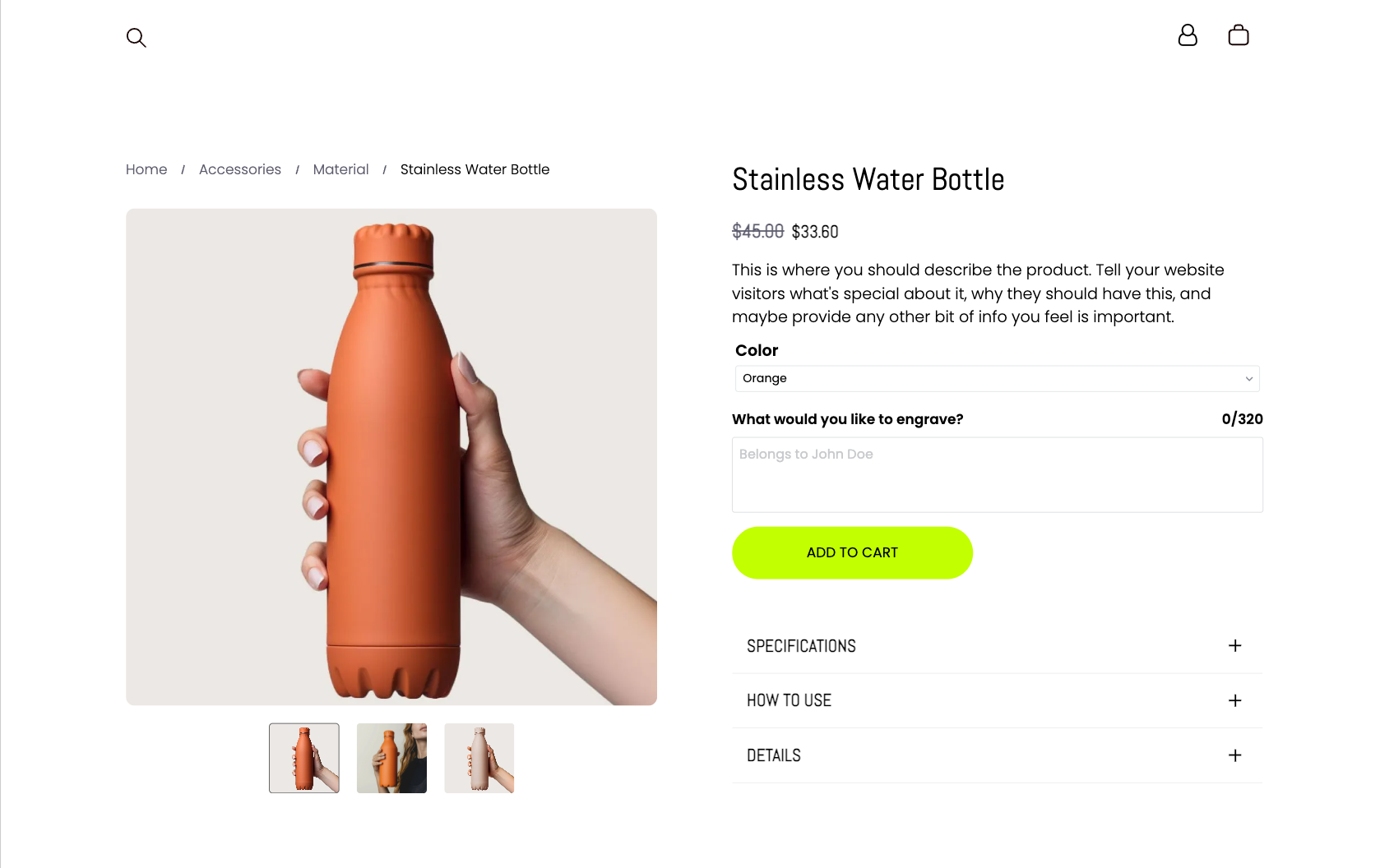
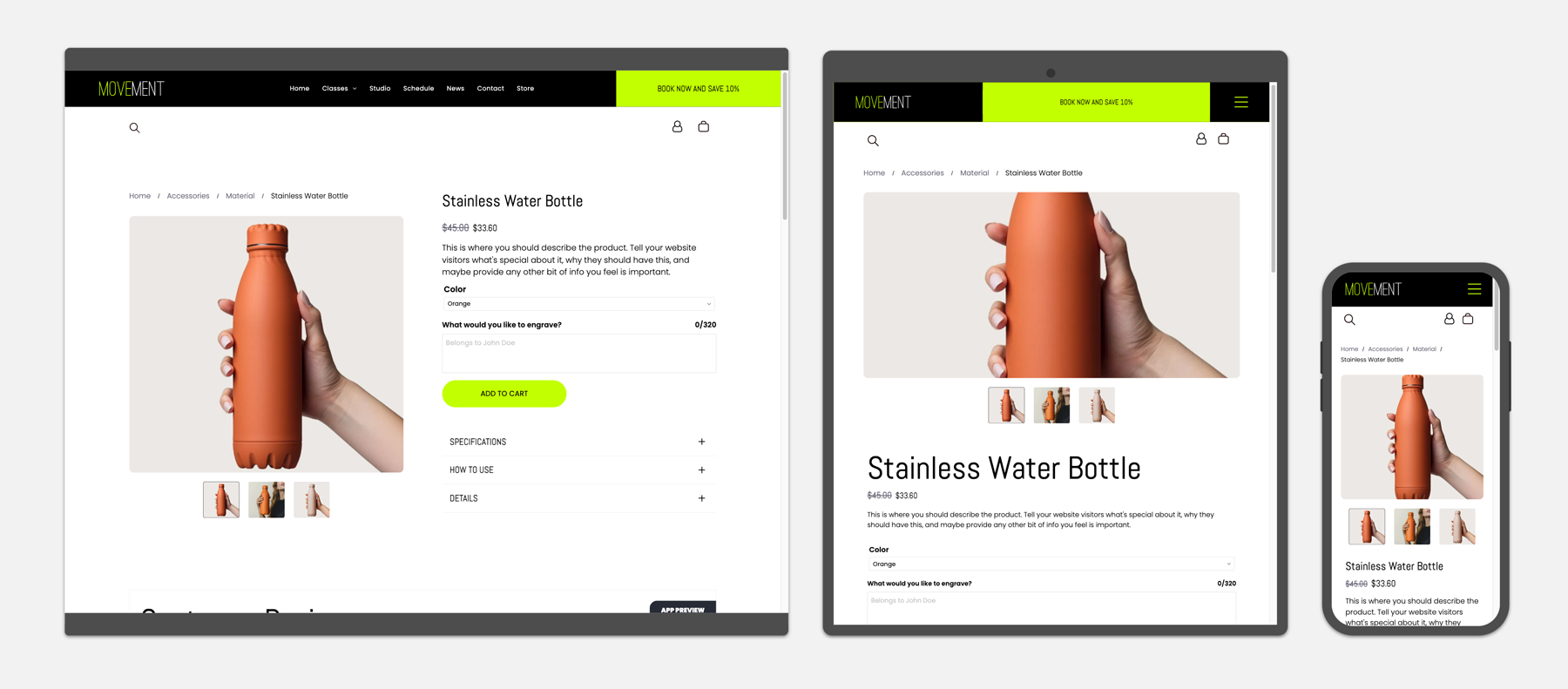
Product page
The Product Page you'll see in the editor acts like a template: any time someone clicks on a product, they'll land on a product page. The contents of that page will get swapped out dynamically.
The product details are pulled from a collection. Think of the collection like a mini-database that houses all of your product information. More on this later!
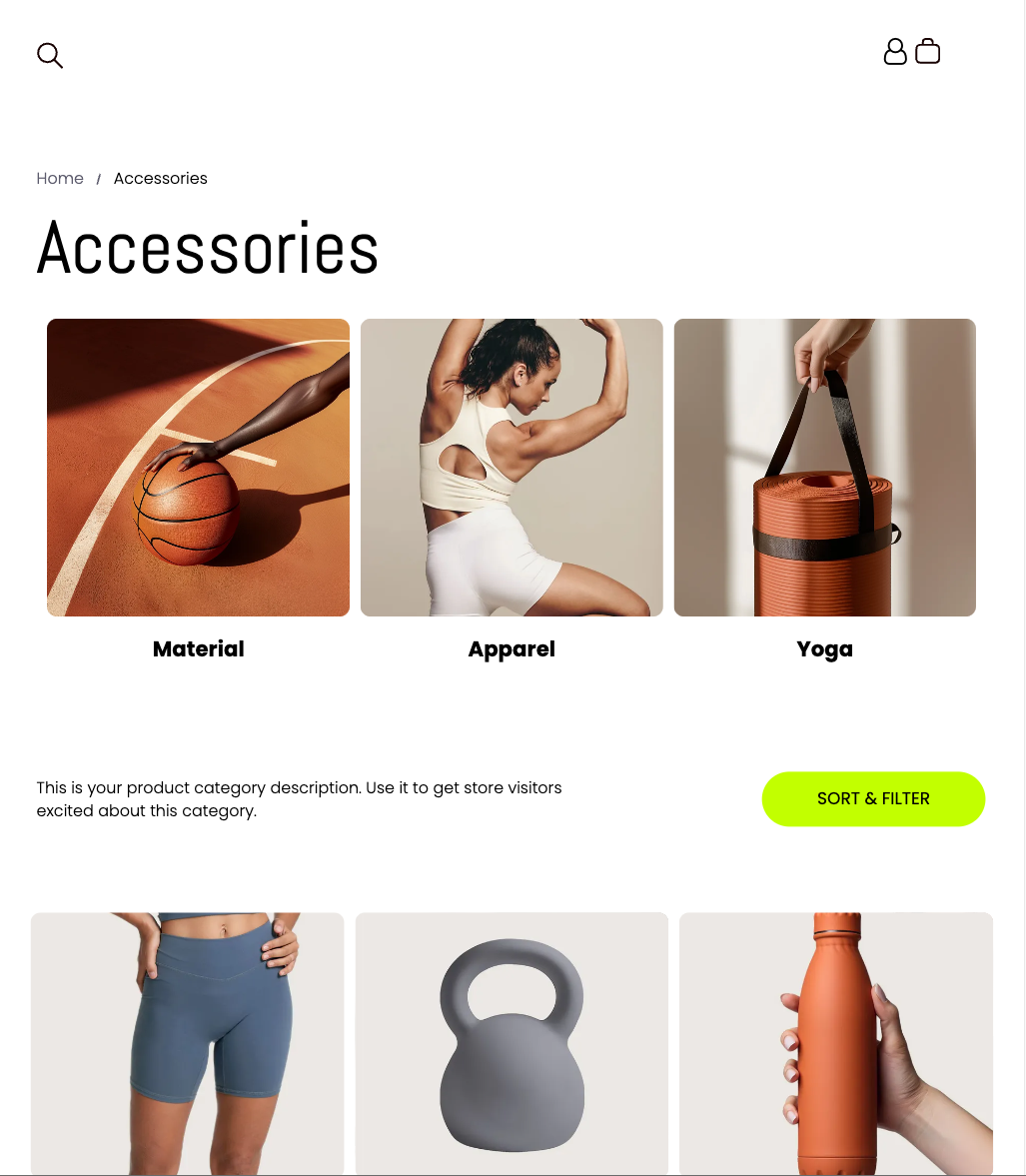
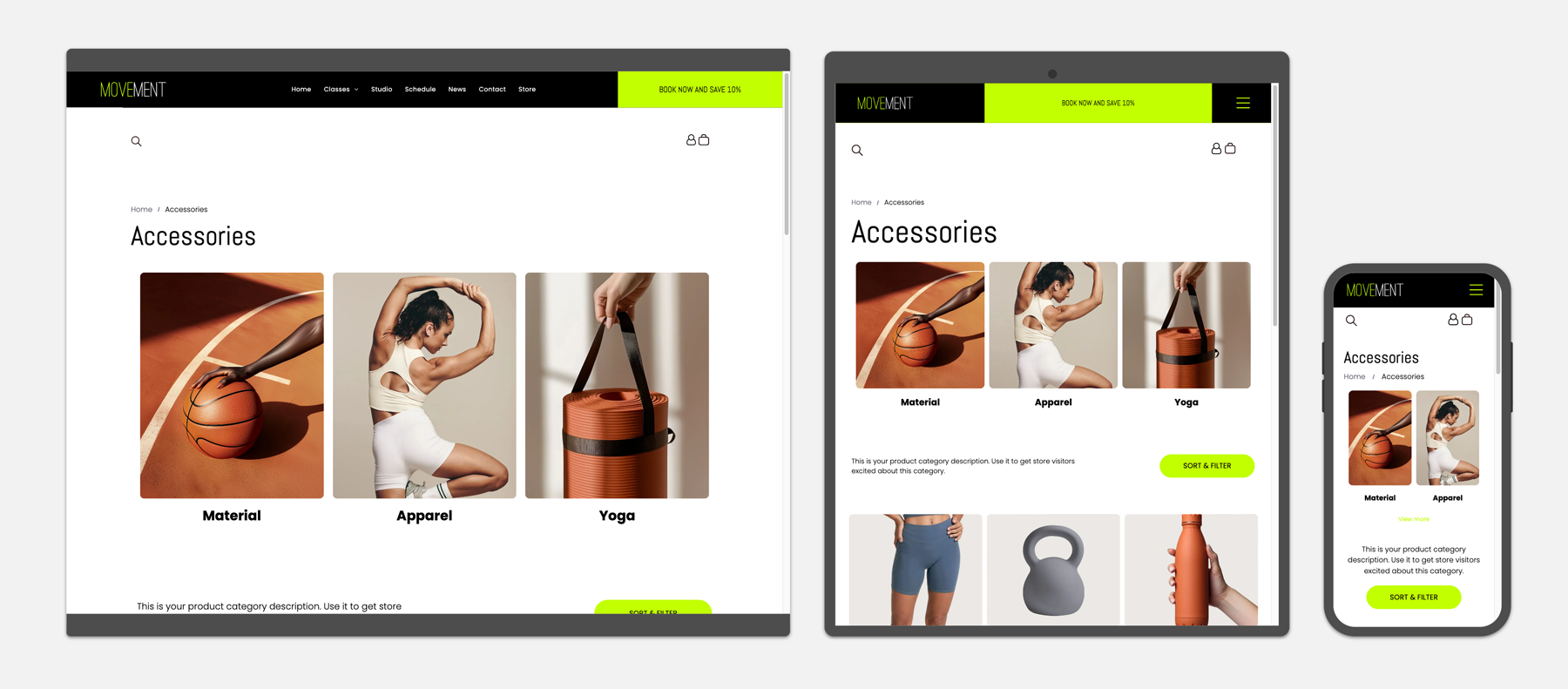
Category page
If you organize your products into categories, this is where page shoppers will land if they select a category.
This page may also feature subcategories to help filter products further.
When a new store is added to your your site, the store will automatically come with a category page for you to work with.
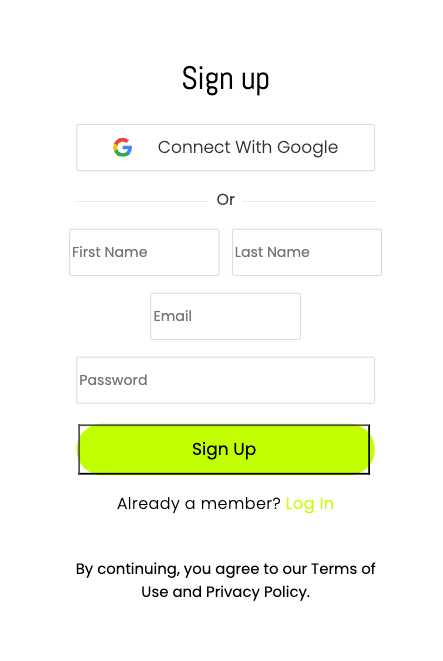
Sign-in page (optional)
If you offer recurring product subscriptions, this page allows shoppers to manage their subscriptions.
This page isn't needed for every type of store, but it's available should you need it.
Did you know?
All of these pages can be customized! You can make changes to the colors and page layouts like you would any other page in your site.
Store widgets
In addition to new pages, adding a store to your site unlocks a host of new ecommerce-focused widgets as well. These will come up throughout the other courses as you start building. For now, just know they exist!
Store widgets available for use on all site pages
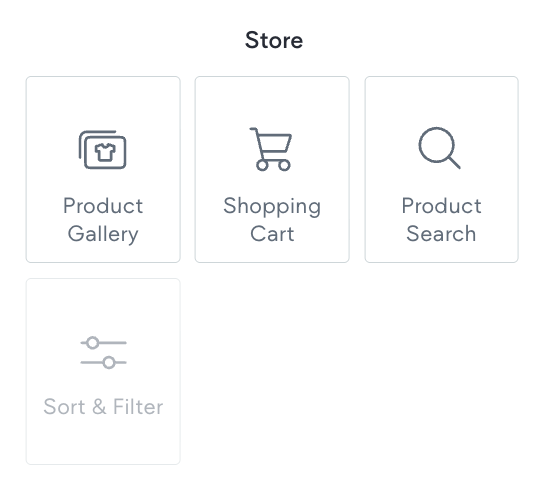
These widgets work just like regular widgets!
Drag them onto the page and customize their properties through the design panel.
Store widgets available for Product Pages only
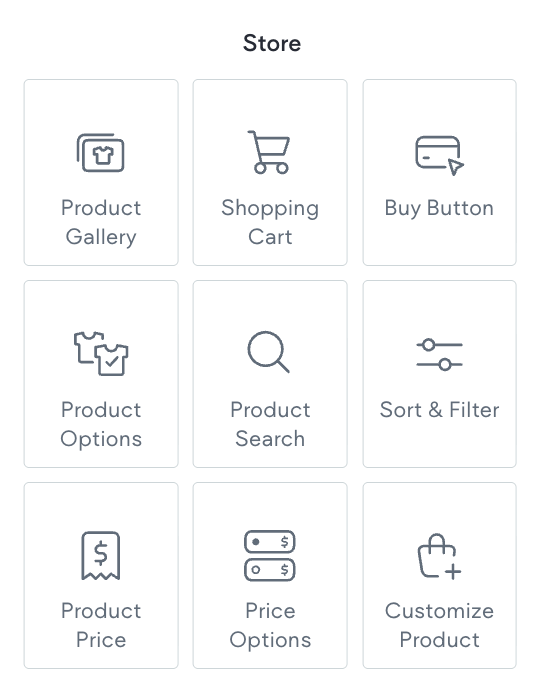
Next up, we're going to encourage you to think about your want to accomplish with your store and the shopping experience you want to provide.