
/CONNECTED DATA
Using Dynamic Filters
Dynamic Filters work similarly to Fixed Filters: They help refine the content displayed in list-style widgets, like a Photo Gallery or List, so only relevant or related items are shown.
Like Fixed Filters, the criteria for Dynamic Filters aren’t chosen by site visitors. Instead, the filter is determined by the
content of the page itself.
The key difference is that Dynamic Filters can only be used on Dynamic pages, whereas Fixed Filters can be used on both Static and Dynamic pages.
Important
To use Dynamic Filters, at least one of your Collections must be an Internal Collection managed directly within the Duda platform.
Transcript
Helpful Links
Dynamic filters can help you display only the content from a collection that's relevant to a dynamic page item without creating separate data collections for each page of a website.
This feature can be used in a variety of ways. You can categorize Properties by area on a real estate site, sort students by grade on a school website, or show different workout classes on a Fitness Studio website. Let's take a closer look at that example.
Say you're a personal trainer that offers exercise classes. You have a database that contains a lot of different information like class names, class times, instructors, and current availability.
If you wanted to have a page just for your pilates class offerings, instead of creating and maintaining a new collection just for pilates class information, you can now apply a dynamic filter to a connected widget on a dynamic page that only displays pilates class info on the Pilates Page, yoga info on the yoga page and so forth, all based on the same collection of data.
This saves you time when building your website and decreases the time it takes to update your class information later on. Dynamic filters aren't just for table widgets.
The feature is available in every widget that can be connected to collections. When added to a dynamic page, this includes Gallery widgets, list widgets, accordion widgets, slider widgets, and custom widgets. The dynamic filter can be found in the sort and filter tab in the connected data pop-up.
To use Dynamic filters, you'll only need to create two collections: one that contains your data in a category name field called class listings in this example, and another that contains all categories themselves and their details named types of workout classes here.
From here, you'll create Dynamic Pages for each row in the types of workout classes collection.
Then you can add a widget that can be connected to data, such as the table widget, to any page of your choice.
Click on the gear icon and then select connect to data. Now you've connected to the class listening selection and, if you want, choose which fields you want to display.
Then click the filter and sort tab. Here's where you can apply Dynamic filters in the dynamic filter section. Click add filter. This maps between the class title field in the class listings data collection and the workout class name field in the types of workout classes collection.
When a user views the Pilates page item, the filter value will change to Pilates, so only Pilates classes will be displayed on the Pilates page. Because these are Dynamic Pages, we only have to set these filters once for them to apply across all Dynamic pages. So the yoga page only shows yoga information, and the same goes for the Core Fitness page too.
Another useful feature is fixed filters. This filters by the same value in all Dynamic page items, meaning the filter doesn't change according to the page. For example, I can set a fixed filter to only show classes that are marked as available on all workout class pages.
Check out the support article on Dynamic and fixed filters for more information on these features.
The Filter Mechanism
Dynamic filters automatically adjust what a list-based widget shows, so site visitors only see content that’s relevant to the Dynamic Page they’re viewing. This feature connects data from two different Collections and displays it together on a single page, so everything is related.
Let's look at an example.
Transcript
Helpful Links
Hi everyone, I'm Dorit from Duda Support Team, and I want to introduce you to a useful feature we have that can be a bit confusing: Dynamic Filters. Dynamic Filters—when do you use them? If you want to filter Dynamic Pages, meaning you want to filter one collection according to a category and display these categories in separate pages. Basically, you can move between one Dynamic Page to another Dynamic Page.
In this example, I took our Clinic template, and I want to filter doctors according to their departments. I already have this widget connected to the collection. So I can go to one Dynamic Page—Pediatrics—and I can take a look at my staff. This is already filtered, so this is the staff for this department. And if I want to go to Senior Care, then I’ll have different staff.
Here in my staff, I’ll have all my doctors. Each one of them has its corresponding department. So this is a pretty simple example. It basically allows me to have doctors and department services—each department has its doctors filtered according to the category. So this is what's useful here.
Now let’s see how I built this. To start, you need to have two collections. I need to have one collection that contains most of the information I want. This collection has categories, and the categories will be the second collection.
Your main collection does not have to be an internal collection—I used it because it's easier for me to use data like images we already have—but this can also be a Google Sheet, Airtable collection, or an external collection. But your second collection—the categories themselves—does need to be an internal collection. You cannot connect one external collection to another external collection. I hope this is clear. This is not crucial for the example.
Let’s take a look at the fields in the doctors collection. Nothing too special here. The only thing is I have doctor's name, their title, their image, and a short bio. What you can see is that I have one field that is the same—the departments—because these are my categories. So one field, the text field, is something that I want to display on the website. I treat this just like any other text field.
But this field is an options field, and this is where Dynamic Filters come into play. I have two options: Pediatrics and Senior Care. I can have more options. What’s important to understand is that this multi-select field is something that we don’t display. So I could have called this instead of Pediatrics and Senior Care—One and Two. It would be exactly the same. It is important to understand that this is just for sorting and filtering.
So let me call it again what it used to be—Pediatrics and Senior Care. What’s important to understand is that I don’t treat this as a text field. This is just to sort, to filter. This can be One and Two instead of Pediatrics and Senior Care. It’s basically internal use, and I need to have this field correspond with my second collection.
If I go to my departments collection, I can see that I have a corresponding field. As you can see, this is not an options field, but it can be—it’s not important. What is important is that I have a field that corresponds to the other field because I want to filter the other collection according to this one.
So I have two collections, and I will have two Dynamic Pages. I don’t have to display both of them, but I chose to display them here. I don’t have to do it. Here, let’s go to my Doctors page. This is a Dynamic Page—everything here is connected to the collection. And this widget is connected to my second collection.
I’m in the doctors’ Dynamic Page where everything is connected to doctors. If I look at my data here, it's connected to doctors. But this widget is connected to departments. Here, I want to filter this, so I go to Filter and Sort, and I sort this according to the department collection, department name, and I match this field to my options field, my multi-select field in the other collection. Now it automatically filters this according to its department, which is Pediatrics.
You can see that each doctor will have its own department, and the same goes for the departments. If I want to go from this Dynamic Page to another Dynamic Page, I can click and it will put me into another Dynamic Page. This is something that wasn’t available before—now I can move between two Dynamic Pages.
Now I’m in the Pediatrics department, and I want to look at my staff. Again, I can go into one of these Dynamic Pages. Again, on the department page I have a widget that is filtered according to the other collection. If I look here at my connected data, this field is connected to doctors. Remember that I’m in my departments page, so this is not the doctors’ page, but I connected this to my other collection.
When I go to Filter and Sort, it's exactly the same—I match two fields that are the categories fields. These are options basically. Never mind—let’s continue.
So this is basically it. I hope I was able to clarify this a bit more. The important things to remember:
Plan ahead—what you want to display, what your categories are.
Understand the concept of options fields—the multi-select field is something you only sort according to; the content is not important. What is important is that you match this field to a corresponding field in the other collection. The fields must match because they filter based on these values.
Dynamic Filters enable you to move between Dynamic Pages.
If you’re using a text field here to match the options to the second collection, use a simple plain text field, not rich text.
You can also change this into an options field. For example, I’ll call it “Options” and add the exact same options. This is the multi-select. Now I’ll use this options field instead of departments name. It will be exactly the same.
This is Dynamic Filters. I hope I was able to clarify this.
Note
Dynamic Filters can only be applied to Dynamic Pages.
Let’s walk through the same example shown in the video.
For this exercise, you’ll need to either create a new test site or use an existing one from your site list.
Step 1:
Download the collection below (CSV).
Step 2: Create an internal collection.
Step 3: Rename the collection to 'Departments.'
Step 4: Create the following fields and assign them the corresponding data types:
| Field Name | Data Type |
|---|---|
| Item | Plain Text (Locked) |
| Department Name | Plain Text |
| Description | Rich Text |
| Image | Image |
Important
If you see the error “CSV contains fields that are not present in the collection,” it means your collection doesn’t have any field names yet.
To fix this, add the same field names found in your CSV file to your collection before importing. Once the fields match, your import will work correctly.
Step 5: Click the three dots (⋯) next to the collection name to import the CSV.
Step 6:
Repeat the same steps for the secondary collection.
a) Create a new collection and rename it to 'Doctors'.
b) Add the following fields with their corresponding data types:
| Field Name | Data Type |
|---|---|
| Item | Plain Text (Locked) |
| Name | Rich Text |
| Department Options | Plain Text |
| Image | Image |
| Bio | Rich Text |
c) Download and import the collection:
Step 7:
Create two Dynamic Pages (one for each Collection) and connect each page to its corresponding Collection.
For each dynamic page:
- Add a widget for every data type in the corresponding collection and connect it.
- Make sure each Dynamic Page includes a photo gallery or another list-based widget. In the next steps, this widget will be connected to the other collection and its corresponding dynamic page, so that related content from both Collections is displayed.
Step 8: Select one of your Dynamic Pages (for example, the Departments page).
- Click on the photo gallery on that page.
- Connect the photo gallery widget to data.
- For the Collection setting, select the Collection that is not connected to this Dynamic Page. For example, if you’re on the Departments page, connect the gallery to the Doctors Collection.
Step 9: Apply the Dynamic Filter.
The dynamic filter connects fields from two different Collections based on matching values. In our example, both the
Departments and
Doctors Collections contain values like
Pediatrics and
Senior Care. Even if the field names are different, the filter can match the shared values and link the data accordingly.
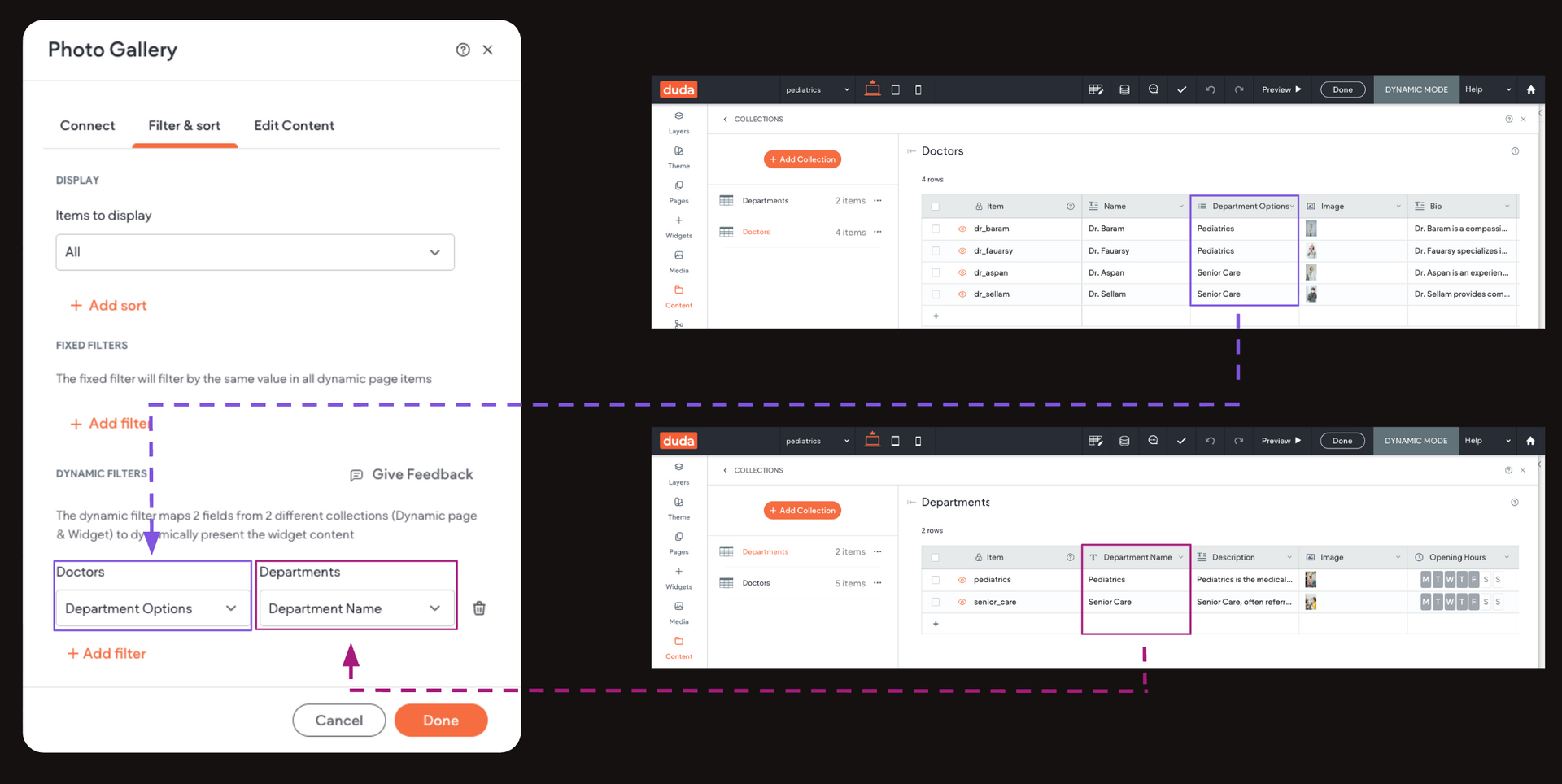
Result:
Visit the different Department pages (for example, Pediatrics and Senior Care). The photo gallery should now display only the Doctors associated with that specific department.
Now, repeat the same process for the other Dynamic Page to display related Departments for each Doctor.