
/INSTRUCTIONS
Your turn
Customize the Testimonials section
Step 1:
Set the Background color for the Testimonials Section
- Set Background Color:
- Select the Testimonials section.
- In the design panel, set the Background color (ex: to Orange Tint). Do this for both sections.
Step 2:
Update Text Copy and Formatting in Section A
To modify section A:
- Update Text Copy:
- Click on the first text widget within Section A and change font color (ex: set to Dark Orange).
- Replace the heading text with updated copy.
Step 3:
Replace Images, Adjust Sizes, and Duplicate Columns in Section B
To modify section B:
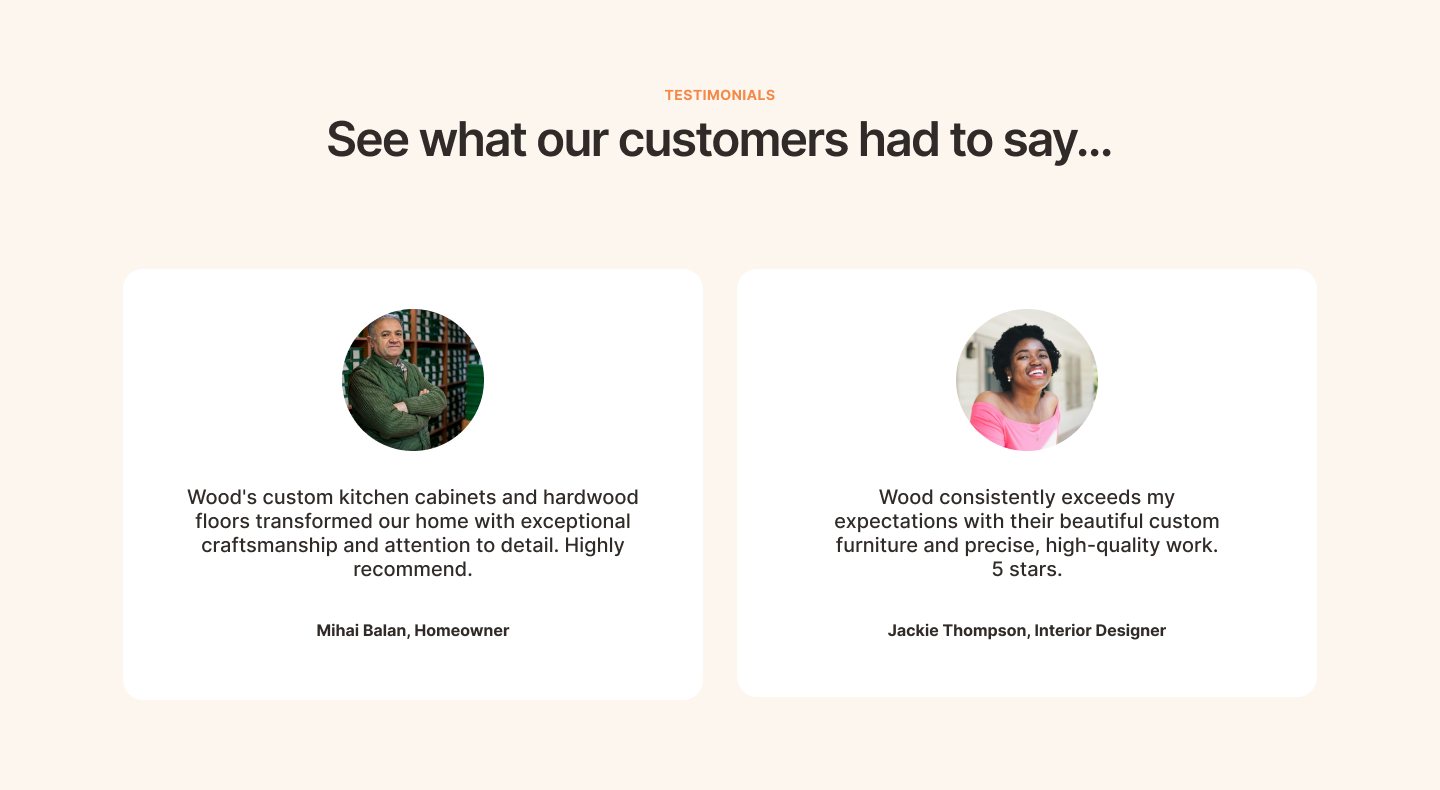
- First Column Modifications:
- Remove all existing widgets.
- Add an Image widget followed by two Text widgets sequentially.
- Click the Image widget and select the corresponding image. Then, in the design panel, select Layout (ex: circular image layout).
- Set the Image widget Size (ex: set Width to 25% and Height to 120px).
- Replace copy and set Size of the testimonial description text widget (ex: set Width to 85%).
- Second Column Setup:
- Delete the existing second columns and duplicate the first column to create a consistent layout for the second testimonial.
- Replace the text and image with corresponding content for the second testimonial. Set Size of the testimonial description text widget (ex: set Width to 67%).
- For the finishing touches, adjust the Spacing on both columns (ex: set padding-bottom to 4%).
In this lesson, we'll focus on customizing the Testimonials section of the electrician template. Testimonials are crucial for building trust with potential customers by showcasing positive experiences of past clients. This module provides an opportunity to practice enhancing credibility and engagement through client feedback.
Here's what this section will look like after following the instructions below: