The Layers panel
/Editor 2.0 FOUNDATIONS
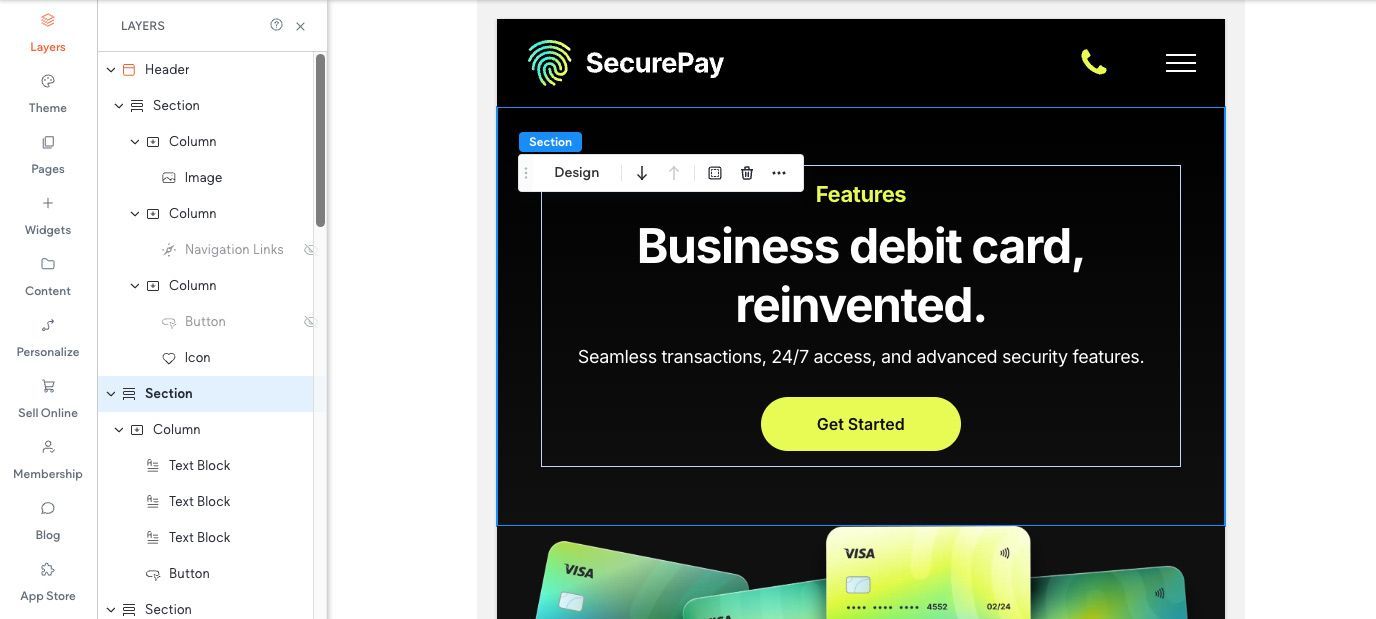
The Layers Panel is key to helping you navigate elements and stay organized. This is where you'll find a list of all the elements on a page and the
hierarchy in which those elements appear.
When you add a section to a page, it comes with built-in columns for you to use. So, when you place widgets on the page, they’re being added as direct children of those columns.

The indentation in the Layers Panel shows how elements are related to each other in terms of their hierarchy or grouping.
If an element is indented compared to others, it means it is nested within or
dependent on the element directly above it. This creates a
parent-child relationship, where the parent element controls or contains the child element.
Other benefits of the Layers Panel
In addition to having a better view into the structure of your page, the Layers panel can also be used for:
Navigation

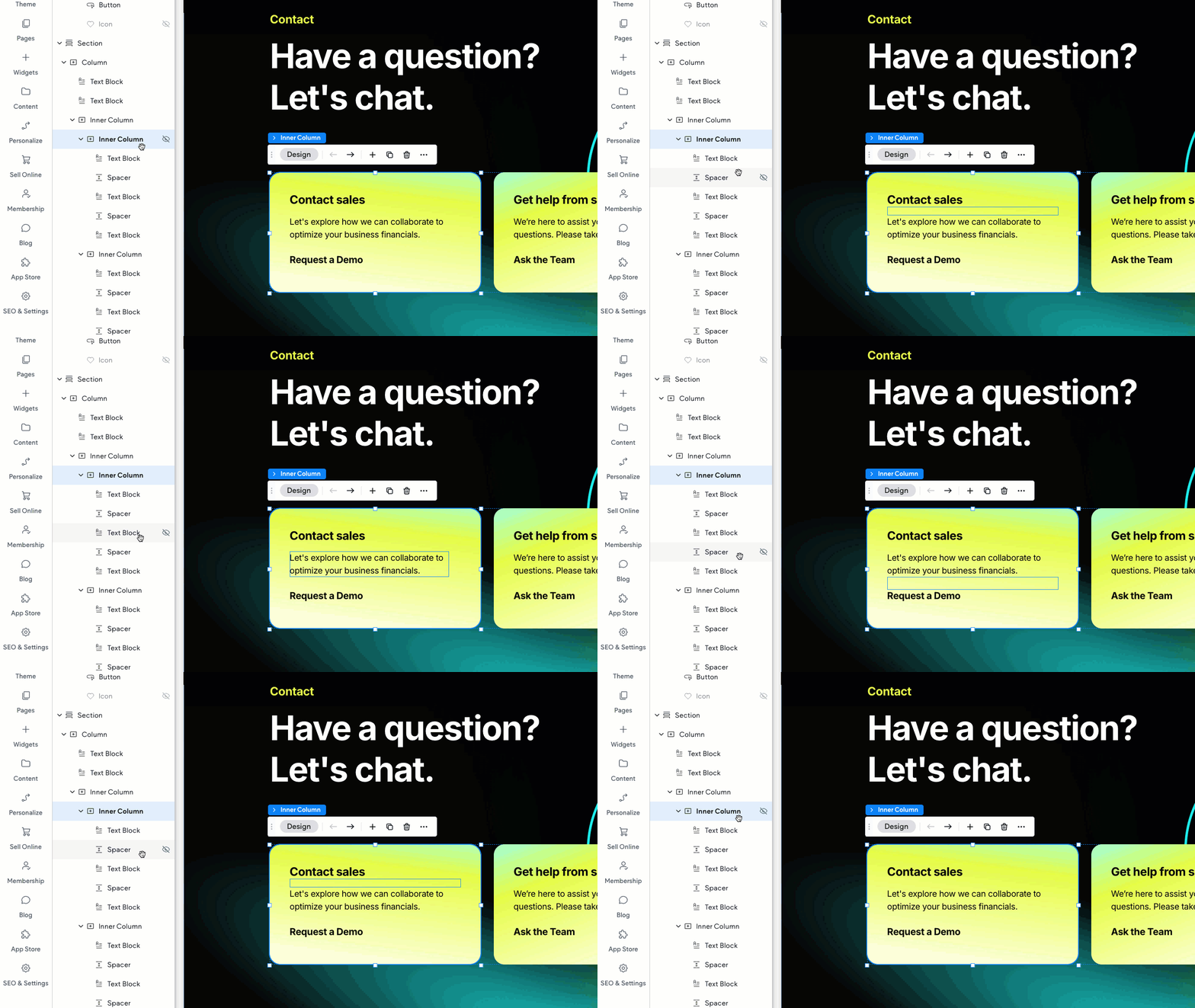
Clicking on a layer in the layers panel automatically selects the corresponding element within the canvas.
This is a big help in situations when you have elements sitting in a column that are 100% of the width and automatic height. Use the Layers panel to select the exact element you need in the stack.
Organization
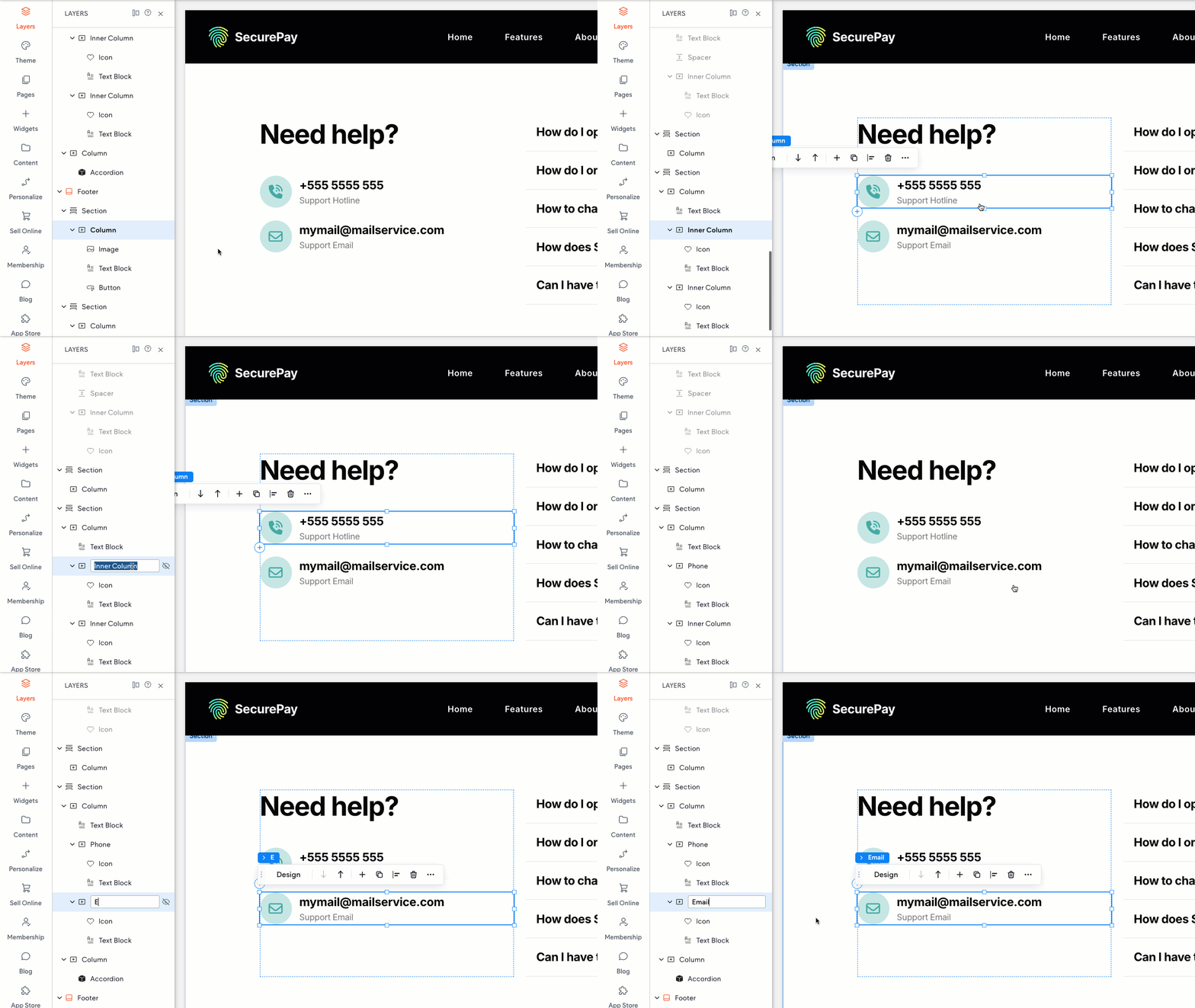
If you have a complex layout with lots of elements, you can label your elements to help you identify and group different portions of the page.
Control element visibility

If you want to customize which sections or elements appear on your mobile and tablet layouts, you can manage the hiding/showing of elements from within the Layers panel.
Simply click on the eye symbols located in each row to control whether the element appears (or doesn't!) on that particular breakpoint.
Reorder elements
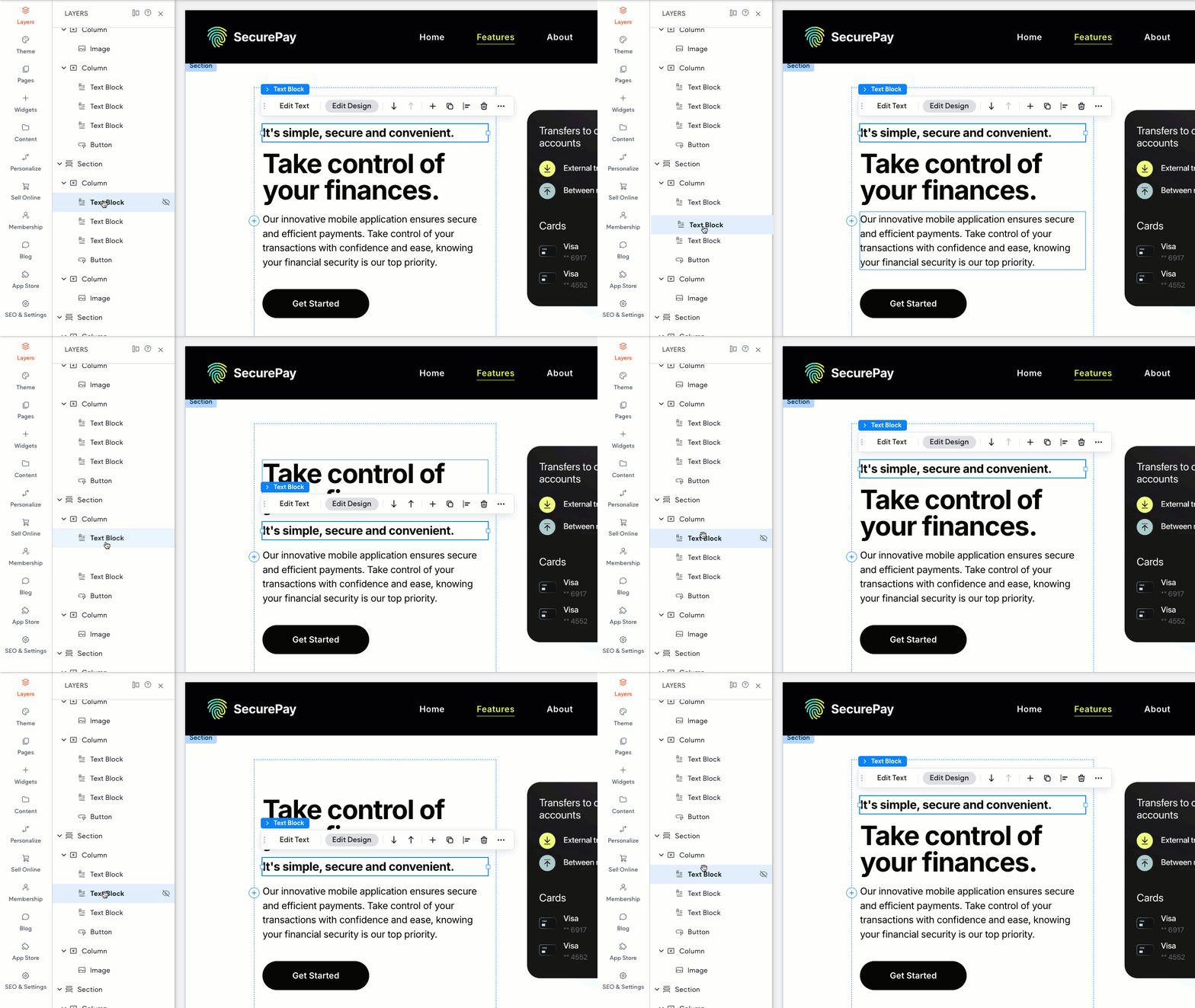
If you've duplicated an element and want your new element to appear at the top of the elements in a column, you can simply drag your element above the other child elements in the section to change the sequence.

Important
Only the elements within a layout element (sections, columns, inner columns, advanced grids) can be moved using the Layers panel.
Layout elements themselves cannot be reordered using the Layers panel but can be moved use the arrows in the floating menu:

Also, elements cannot be dragged between sections from within the Layers panel.