
Basic and Advanced Editing
/Editor fOUNDATIONS
More header capabilities! Editor 2.0 offers two approaches:
Basic Headers and
Advanced Headers.
In Classic, you might remember it was tough to add complex widgets to the header on mobile—your choices were pretty limited to just a few preset options. But with Editor 2.0, you can choose between basic and advanced headers, opening up a lot more flexibility. Keep reading below to find out all the details!
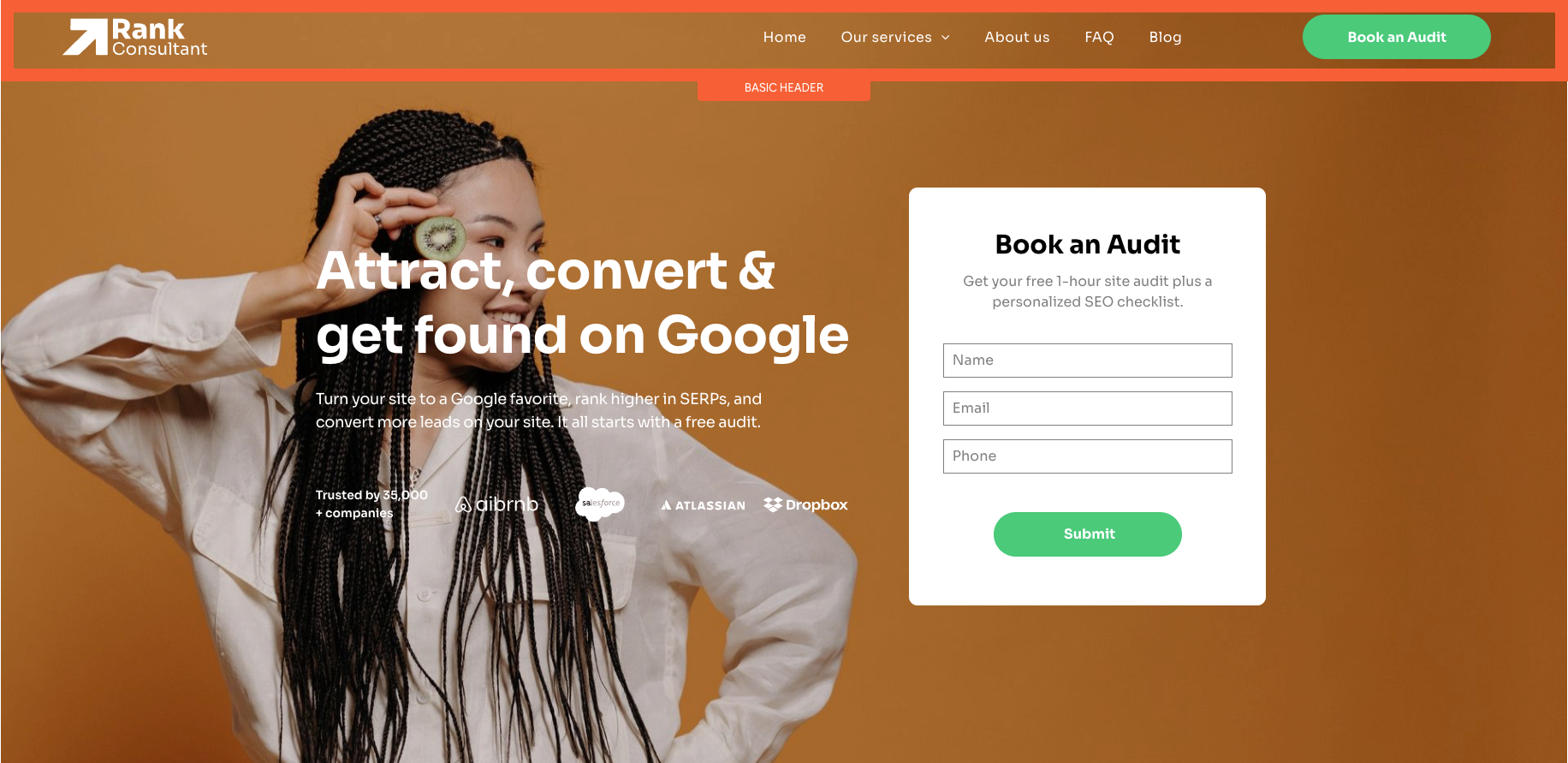
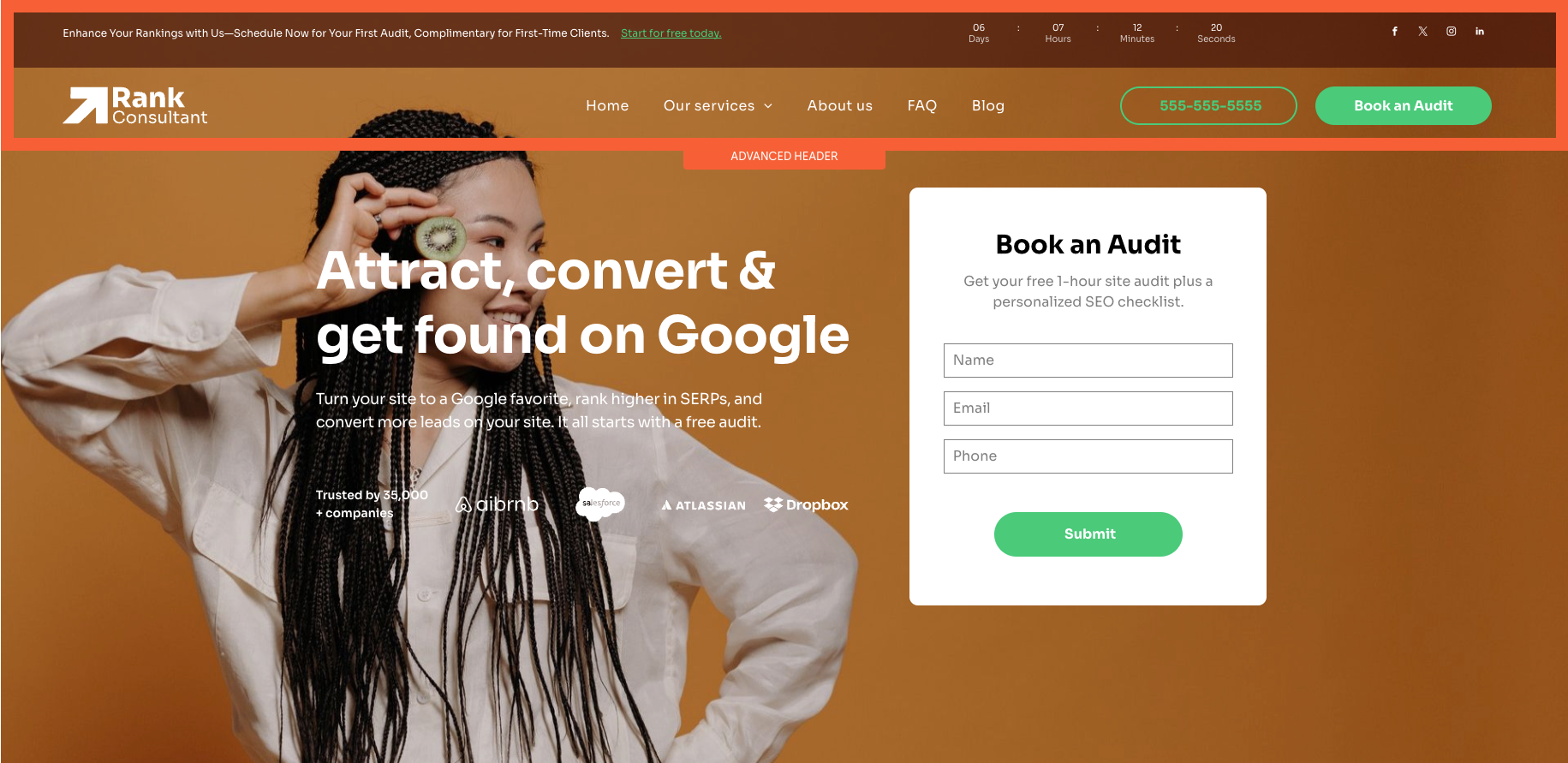
Basic Headers
For simple configurations, basic headers are perfect. They provide a quick and easy way to establish a header using preset layouts with limited customization options. While you can edit existing widgets, actions like deleting or adding new widgets are restricted, so you are confined to the preset design layout.
Set up a basic header
To set up a basic header:
- Click on the Header.
- In the design panel, expand the Presets property.
- Select a preset layout that aligns with your design. If you switch to a different preset, you’ll automatically return to basic header editing mode.
Advanced Headers
If you need more control over your header’s design, advanced headers provide further customization beyond the basic header. This option allows you to incorporate complex elements such as social icons, additional navigation links, or custom HTML blocks.
Set up an advanced header
To set up an advanced header:
- Click on the Header.
- In the design panel, expand the Presets property and click Enable Advanced Editing.
- In the advanced editing modal, review the important considerations, then click Enable Advanced Editing.
- Once enabled, you can add widgets like social icons, additional navigation links, or custom HTML blocks to tailor your header exactly to your needs.
To disable advanced header editing:
- Advanced headers are reversible; select a new preset layout or click Disable advanced editing in the design panel under the Presets property. Be aware that some customizations made with advanced editing will be lost.
Comparison of Basic and Advanced Header Features
| Feature | Basic Headers | Advanced Headers |
|---|---|---|
| Customization Level | Limited customization using preset layouts. | Extensive customization with the ability to add, remove, and modify widgets. |
| Preset Layouts | Can select and use preset layouts but cannot modify the layout structure. | Can start with a preset layout and then fully customize by adding or rearranging widgets. |
| Widget Editing | Can edit existing widgets, but cannot add new widgets or delete existing ones. | Full control to add, remove, and modify any widget, including custom HTML blocks. |
| Ease of Use | Quick and easy setup with minimal configuration; ideal for beginners. | Requires more setup and design decisions, suitable for advanced users or designers. |
| Layout Flexibility | Constrained to the design and structure of the preset layout. | Complete flexibility to change the layout structure, including the addition of new sections. |
| Content Customization | Limited to editing content within preset widgets. | Allows for adding diverse content types, including additional links, calls-to-action, etc. |
| Switching Layouts | Can switch between preset layouts easily, returning to basic editing mode. | Switching back to basic headers from advanced headers will remove some customizations. |
| Design Control | Basic design controls, including the ability to customize color, font, spacing, background colors, and opacity. | Same design controls as basic, with more options unlocked when new widgets are added. |
| Reversibility | Can switch to advanced headers and back with no initial visible changes. | Can revert to basic headers, but some customizations may be lost. |