
/CONNECTED DATA
Connect Collections to power Dynamic Pages
Collections allow you to manage and scale dynamic content across your websites. Think of Collections as mini-databases you can plug directly into your site design. They're the engine behind dynamic pages, content-rich widgets, and list-based components like accordions, galleries, sliders, and more!
Transcript
Helpful Links
Dynamic pages allow you to create multiple pages based on the same page layout. These pages are generated from content collections stored in the content library or in an external source. It's really great for any site that has pages that have the same layout but display different content, like recipes, for example. It's great for real estate, team members pages, catalogs, really any page that has the same layout but displays different content. It makes it super easy to create, to update, and to maintain.
So how does it work? Dynamic pages are based on the same technology as connected data, where instead of entering content to the widgets, we just connect them to a data source and then display the data on the website. In this case, our data source is a collection.
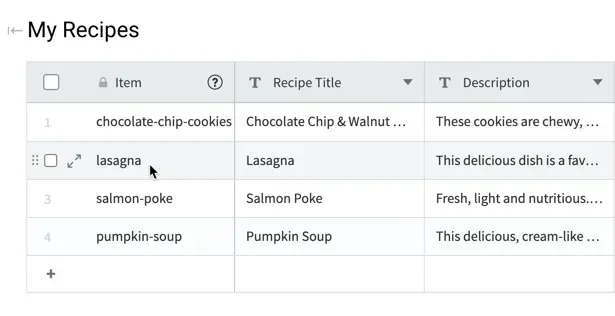
A collection is basically a table with content, but in this case every row in the collection represents a page we want to create on the website and every field in the collection, every column, represents that type of data that we want to display. So, if for example, this collection is a collection of my team, of every person on my team, each row in the collection will represent a different team member, and every column in the collection will represent, for example, the team member's image or the team member's name or the team member's description, a different type of data that we want to display on the website.
So let's say I have my collection of all my team members. My next step would be to create a page layout that will fit for every team member and then when I connect the two I'm actually creating a dynamic page. What happens is that a page is created for every row in the collection. So, if in this example we're using team members, by creating a collection of team members and connecting it to a dynamic page, I'm actually creating a page for every team member on my team, for every row in the collection.
So what actually makes it work and display the relevant data in each page is the connected data part. So if my first step was to connect the collection to the dynamic page, my second step would be to connect the widgets to the relevant fields in the collection. So for example, if I have here my team member page, I will go to the image widget and connect it to the team member profile image, I'll go to the text widget and connect it to the team member's name, etc. and then I'll just map the relevant widgets to the relevant fields in the collection, and it will create a page for every team member in my collection with its relevant data that appears in the relevant row in the collection.
Another important field in the collection is called page item URL. Since each row in the collection represents a page and each page will be displayed on the website, each page has to have its own unique URL, and this is what page item URL is all about. It basically gives a URL for each one of the page items, each one of the generated pages that were created when we connected the collection to the dynamic page. So you can either have a dedicated field in your collection for this, or if you have fields that are URL compatible, you can use them. You can just assign them in some of the collections and when we get to the collection part, we'll discuss that too.
Another important step when you create your dynamic page is to make sure that you connect the page's SEO to the collection data as well. So for example, if I have here my recipe site, and I want to share each recipe on the social networks, I really want each recipe to have a different image display when I share it. So what I can do in this case, I can just go to the pages panel to my dynamic page and under SEO I can connect to the collection, the SEO title, the SEO description, and the SEO open graph image which is the image that is displayed when you share your site on social networks. Then I'll have different details for each one of my recipes when I share it.
A unique URL for every page
Each row in the collection represents a page and has its own URL, defined as the page item URL.
Set a unique, meaningful URL to improve usability and boost SEO.
Important
Every collection,whether it’s powering a dynamic page or a list-based widget, must have a Page Item URL field.
- For dynamic pages, this field drives the URL path for each generated page.
- For list-style widgets (accordions, sliders, galleries, etc.), items don’t actually need their own URLs,
but the field is still required to save and use the collection. Simply choose a key that uniquely identifies each object (like name or id), even if the widget never displays it as a link.
Common use cases for Collections
Collections are ideal for managing repeatable, structured content across a site—like recipes, team bios, or service listings, to name a few—without the need to manually duplicate or update each instance. By separating your content from the design, they make it easy to manage updates efficiently, whether you're editing directly in the platform or syncing data from external sources like Google Sheets, Airtable, or a custom CRM.
Transcript
Helpful Links
Collections are used to organize and manage dynamic content—think of them as mini-databases you can plug into your site. They power things like dynamic pages and list-based widgets—such as accordions, photo galleries, sliders, and more—making it easy to scale content-rich websites without manually building or updating each section.
In Duda, you can work with a few main types of collections. Internal Collections are created and managed directly in the editor. They are great for small to medium datasets and are editable via a table-style interface inside the editor.
Image Collections are also created and managed directly within the editor and are perfect for showcasing groups of images in an organized, dynamic way. They’re great for multi-image widgets like photo galleries or media sliders.
Then we have Google Sheets and Airtable collections. Similar to Internal Collections, they use a table-style interface—but the content is managed externally. They're perfect for teams or clients who prefer to update content in a familiar spreadsheet format, without needing to log into Duda.
Lastly, we have external databases—the most flexible and scalable collection type. These allow you to pull content onto your site via the API, making them ideal for automating updates, managing large datasets, and integrating directly with your own backend systems. While they require some initial setup, they’re a powerful solution for dynamic, high-volume sites.
In this video, we’ll be working with external databases using JSON format. The first example we'll look at uses a list-based widget—specifically, the accordion we're using for the FAQ section. Accordions and other list-based widgets in Duda are perfect for connecting to collections because they’re designed to repeat structured content.
If you take a look at a single accordion item, you'll notice all the different data it can contain, and each one of these fields can pull data from your collection to dynamically populate the content. Here's the external database I’ll be using to connect to the accordion widget we just saw. It’s formatted in JSON and contains three objects, which means that if the connection is successful, we should see three items populate in our FAQ section.
Notice that we have different keys here, and we can map each of these keys to specific fields in the accordion widget. Back in the editor, head over to the Content Library to create a new collection. We'll need the URL of the external database, and if your collection requires any authorization headers or IDs, you'll need to configure those here.
Once you've connected the external collection, we should see a preview of the dataset and be prompted to set the Page Item URL — a required field that defines the unique path for each dynamic page. In this example, we’re connecting the dataset to a widget, not a dynamic page. While the specific key you choose isn’t critical, setting one is still required to complete the setup. Choose a key that best represents the object's name.
Lastly, we'll need to set up the correct data type for each field type. And let's give our collection a name. Now that we've added a collection to the site, we can connect it to the accordion widget and map out all the fields. And there we have it. Our accordion widget has been populated with data from the collection.
We’ve just seen how to connect a collection to a list-based widget. Now, let’s shift focus to connecting a collection to a page. This creates a dynamic page, where each object in the collection generates a unique page with its specific content. Dynamic pages are perfect when you need multiple pages with the same structure but different content, such as team member profiles, real estate listings, or pages for various business locations.
On the screen, we have the external database we'll be working with. Each object contains more data than the last dataset we looked at. But there are only three objects here as well, so in the end, this collection should only generate three pages. I’ve already connected the collection to the site, updated the data types for each field, and mapped a field to be used as the page item URL.
Additionally, I’ve named this collection 'Team Members.' We'll want to create a new page on the site, but if you already have a designed page you'd like to turn into a dynamic one, you can easily do that—just make sure to connect it to the correct collection. I’ll be using one of these pre-built dynamic pages and connecting it to the "Team Members" collection I just configured.
In the page panel, once you’ve connected a page to a collection, you’ll notice a small database icon appear, signaling that this is a dynamic page. Now that the collection is connected, we can connect the elements on the page to the different fields in our collection. Remember, anything you want to remain static and the same across all pages should not be connected to the collection, but everything you want to be dynamic must be linked to data.
Also, keep in mind that if an item or object is missing a specific field, it may appear as a blank space on the site. To avoid this, ensure that all objects in your dataset are fully populated with the necessary information. Once again, here’s the collection connected to the site. I’ve ensured that each key in the collection has a corresponding widget on the page, all matching the correct data type. Let's go ahead and connect these widgets to those fields we just saw.
Once you’re finished, refresh the editor to ensure all the data from the collection is pulled in correctly. From the page dropdown at the top, feel free to click into any of the pages that were generated. Since I set up the 'name' field in the database as the page item URL, you'll see those names being used as the page titles from the dropdown.
And there we have it! With collections, you can easily manage dynamic content and create scalable, automated websites.
Did you know?
When using structured data sources like Internal Collections or Google Sheets, we refer to a single record (which generates one dynamic page) as a row.
When connecting to a data feed like JSON via an external collection, that single record is instead referred to as an Object within the dataset. Both the row and the object serve the same function: defining the unique content for one dynamically generated page.
Here are just a few ways you can leverage collections in your sites:
Team Member Profiles
Showcase bios, roles, and contact details dynamically.
Real Estate Listings
Create one dynamic page design, and let each property listing populate from your dataset.
Location-Based Pages
Easily build and update pages for franchises, multi-location businesses, or service areas.
Product or Service Catalogs
Power galleries and service lists without manually adding each item one by one.
FAQs and Testimonials
Dynamically feed content into list-based widgets with no need to manually manage each item.
Event Calendars or Schedules
Use collections to power up-to-date listings for events, appointments, or classes.
and much more!
What can you connect collections to?
Collections can be connected to two main things—and both are designed to help you scale content with ease:
1. Pages (to create Dynamic Pages)
When you connect a Collection to a page, you’re creating a
Dynamic Page. That means one single page layout can automatically generate multiple pages, each one pulling in unique content from your Collection.
Perfect for:
- Team member bios
- Real estate listings
- Product or service pages
- Event details
2. List-Based Widgets
Collections also power list-style widgets that repeat a consistent layout, such as accordions, sliders, galleries, and any custom widget built to display repeating content.
Instead of manually adding each item, you just connect a Collection and the platform takes care of the rest, automatically populating the widget with as many items as your Collection contains.
Perfect for:
- FAQs (using accordions)
- Recipe cards
- Photo or portfolio galleries
- Feature comparisons