Widgets
/Editor fOUNDAtIONs
Transform your site with the power of widgets.
Widgets are essential building blocks for your website, designed to support both content and functionality. These pre-coded components come with preset features, enabling you to easily add elements to your site without any coding.
How widgets fit into your site's page structure
Within your site's page structure, widgets fit into sections and columns, serving as the individual content elements that bring your design and functionality to life. They are strategically placed within the broader framework of sections and columns, allowing you to create a well-organized and visually cohesive website.
Basically, your site is built using three primary components:
sections,
columns, and
widgets.
- Sections: Think of sections as broad containers that divide your page into major areas. They help structure and organize content, similar to how
<body>tags in HTML encompass all the content on a page. Sections extend horizontally across the viewport and organize different parts of your page, such as the header, the footer, and content areas in between.
Adding sections

To add a new section:
- Hover between existing sections on the canvas until a prompt appears.
- Click Add Section and choose your preferred layout to insert it into your page.
- Columns: Inside each section, columns are structures that further organize content. You can use columns to arrange content horizontally or vertically within a section.
Adding columns

To create columns within a section:
- Locate the column on the far left or right side inside the section.
- Click the plus icon on the border of the column: For the far-left column, the plus icon appears on the left border. For the far-right column, the plus icon appears on the right border.
- Clicking the icon will insert a new column next to the selected one.
- Widgets: Widgets are the individual elements you place within columns. They are the specific content blocks, such as text, images, buttons, and forms, that you use to build out your site. Think of widgets as HTML elements (like
<h1>,<p>, or<img>) each serving a specific purpose.
Adding widgets

To add widgets within columns, inner columns, or advanced grids:
- Drag and drop widgets from the Widgets tab in the side panel.
- Place them into the desired location on the canvas.
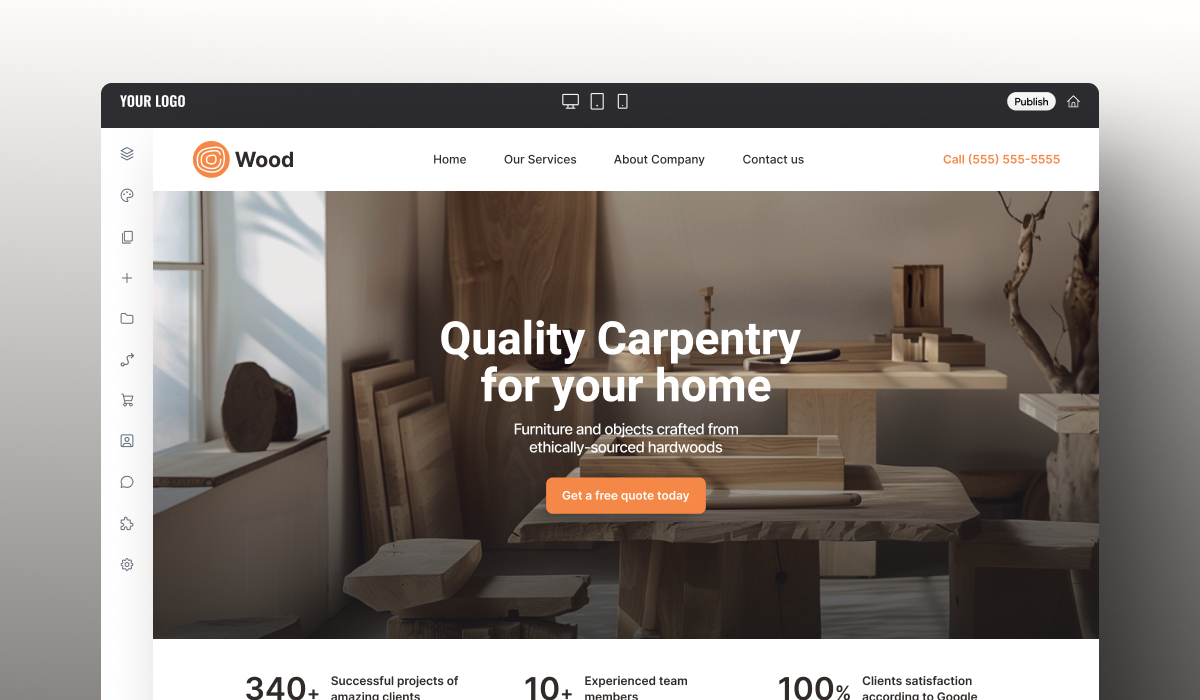
On the canvas, you'll arrange sections, columns, and widgets to build your site. Adding a section creates a major area of your page, and inserting widgets into the columns of that section determines the content and features for that area.
Widgets categories overview
To make the process even simpler, widgets are organized into categories in the side panel based on their purpose and functionality, making it easy to find and use the right widget for your site. The main widget categories include:

Layout Element widgets are essential for structuring your page, allowing you to arrange and organize content. Use layout elements to build the overall framework of your page before adding specific content.
Inner Columns: These are widgets you can add within columns to further divide content either vertically or horizontally. Inner columns can be nested within other inner columns to create complex layouts.
Advanced Grid: This widget can be added within columns or inner columns to offer a flexible grid system for precise control over the placement and alignment of elements.

Basics widgets provide essential content elements, including text, buttons, dividers, and more. Use basic widgets for straightforward content and key features like headings, lists, and countdowns.

Media widgets allow you to incorporate rich content like videos and galleries into your site. Use media widgets to make your site more dynamic and engaging, particularly for product showcases or tutorials.

Business widgets add functionality to support business operations, such as e-commerce and communication. Use business widgets to make it easier for visitors to interact with your business and access essential services.

Social widgets help integrate your site with social media platforms, encouraging user interaction. Use social widgets to connect with users on social media and promote content sharing.

Advanced widgets offer specialized functionality for more complex site features. Use advanced widgets when you need to go beyond standard features, such as adding custom code.

Blog widgets are designed to help you display and manage blog content on your website. Use blog widgets to effectively showcase your blog content, encourage visitor engagement, and improve content discoverability.

Store widgets are specifically tailored for e-commerce functionality, allowing you to build and manage an online store. Use store widgets to create a seamless shopping experience, making it easy for visitors to find, view, and purchase products.
Layout Element
Layout Element widgets are essential for structuring your page, allowing you to arrange and organize content. Use layout elements to build the overall framework of your page before adding specific content.
- Inner Columns: These are widgets you can add within columns to further divide content either vertically or horizontally. Inner columns can be nested within other inner columns to create complex layouts.
- Advanced Grid: This widget can be added within columns or inner columns to offer a flexible grid system for precise control over the placement and alignment of elements.
Basics
Basics widgets provide essential content elements, including text, buttons, dividers, and more. Use basic widgets for straightforward content and key features like headings, lists, and countdowns.
Media
Media widgets allow you to incorporate rich content like videos and galleries into your site. Use media widgets to make your site more dynamic and engaging, particularly for product showcases or tutorials.
Business
Business widgets add functionality to support business operations, such as e-commerce and communication. Use business widgets to make it easier for visitors to interact with your business and access essential services.
Social
Social widgets help integrate your site with social media platforms, encouraging user interaction. Use social widgets to connect with users on social media and promote content sharing.
Advanced
Advanced widgets offer specialized functionality for more complex site features. Use advanced widgets when you need to go beyond standard features, such as adding custom code.
Blog
Blog widgets are designed to help you display and manage blog content on your website. Use blog widgets to effectively showcase your blog content, encourage visitor engagement, and improve content discoverability.
Store
Store widgets are specifically tailored for e-commerce functionality, allowing you to build and manage an online store. Use store widgets to create a seamless shopping experience, making it easy for visitors to find, view, and purchase products.
A note about Layout Element widgets
- Inner Columns: These are widgets you can add within columns to further divide content either vertically or horizontally. Inner columns can be nested within other inner columns to create complex layouts.
Adding inner columns

To add inner columns:
- Drag and drop the Inner Column widget from the Widgets tab into any column, inner column, or advanced grid on the canvas to create more complex layouts.
- Use the Vertical Stacking Inner Column widget for vertical stacking. Or, use the Horizontal Stacking Inner Column widget for side-by-side arrangement.
- Advanced Grid: This widget can be added within columns or inner columns to offer a flexible grid system for precise control over the placement and alignment of elements.
Adding an advanced grid

To use advanced grids for precise control over layout:
- Drag and drop the Advanced Grid widget from the Widgets tab into any column or inner column on the canvas.
- Adjust the grid to customize the placement and alignment of your content within the grid cells.
A note about Layout Element widgets
As you'll notice above, most of the widgets available in the widget menu consist of visible component that appears when you add that widget to the page. An accordion widget will add an accordion; an icon widget will add an icon; etc.
Layout element widgets are special. They are meant to group other elements to help you control how the content displays on a page.
For example, if you need elements to stack in a certain way, you might use an inner column to control the alignment. If you need elements to overlap, an advanced grid would be appropriate.
We'll talk about this a lot more in later courses, but for now, just know that these special widgets exist.
Note
For those needing advanced customization, the Widget Builder is a powerful tool that allows you to create custom widgets tailored to your site’s specific needs. It supports custom code, reusable components, and integration with external data sources. For details on getting started, see the
Developer Documentation and the support article
Widget Builder.