
/PREPARING to build your ONLINE STORE
Prepping your Product Pages
Imagine you're in a store and you want to buy a new jacket. At the store, you can pick it up, feel the fabric, try it on, and see the jacket from all sides. Online, your customers can't do that. That's why your product pages are so important—they have to communicate the information shoppers need to make their purchasing decisions.
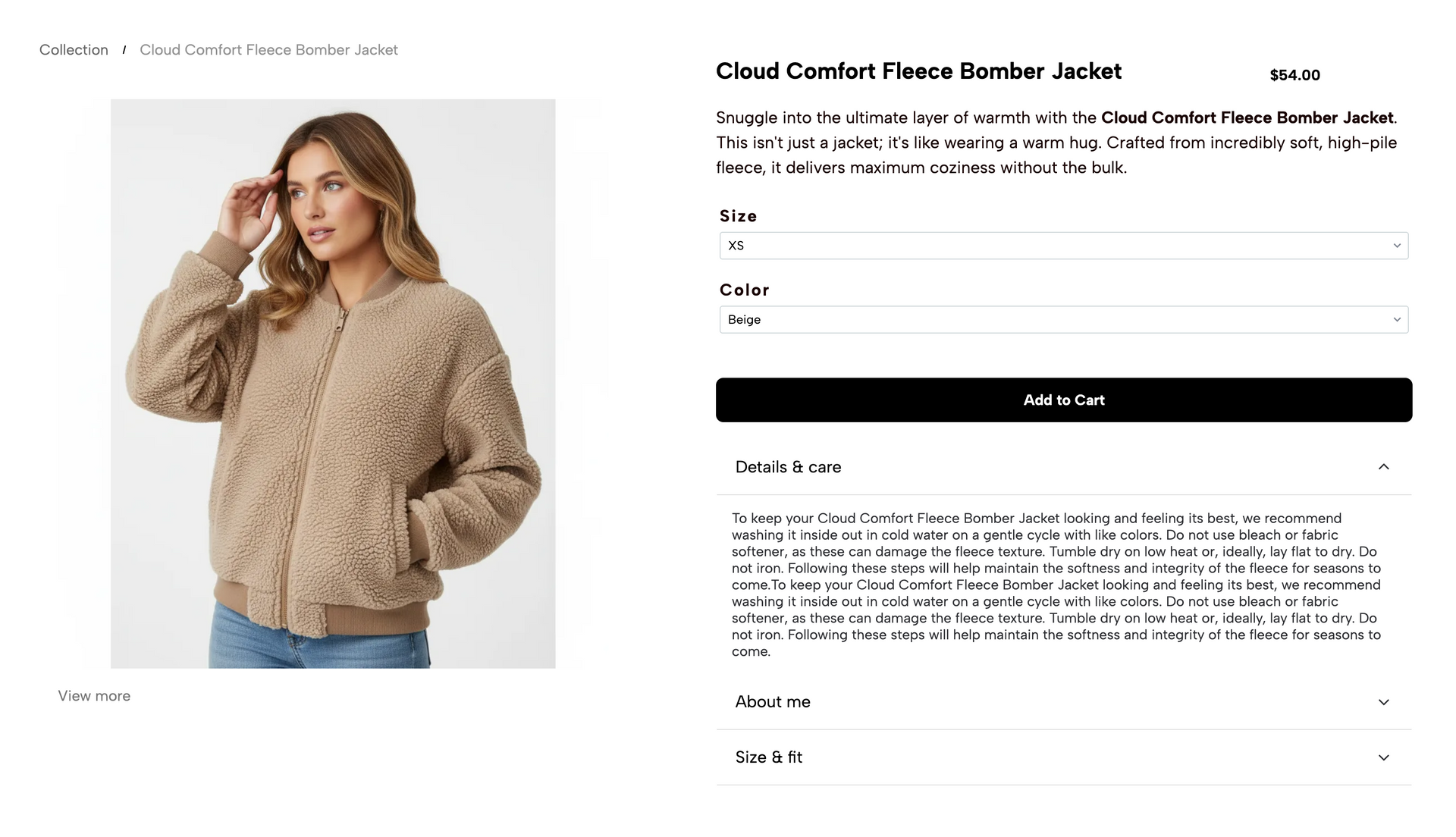
A great product page is like your best salesperson. It answers every question a customer might have without them even having to ask. When you provide all the right details, you build trust and help your customers feel confident about their purchase.
Components in the product page template
Although we've been calling the Product Page a "template," it's technically a dynamic page. This means that product information will be dynamically pulled from your product catalog (like a spreadsheet containing all your product information) and pushed to specific fields on the page.
Dynamic pages are a huge time saver!
We'll cover Product Pages in depth in the next course, however, know that you'll only have to design your product page once. There's no need to manage a separate page for every single product.
So what product information do your customers need?
Start by imagining you are a customer who knows nothing about your products. What information will help them decide to buy from you?
You'll likely need:
- A clear description: This is your chance to tell the product's story. What is it made of? What makes it special? Why will a customer love it?
- Product photos and videos: Show your product from every angle. Take close-ups to show the texture or details. If you can, show someone using or wearing your product.
- Pricing information: Make the price easy to see and understand.
- Shipping and return policies: Let customers know how quickly will the product will ship and what your return policy is.
- Customer reviews: Optional, but useful for customers. Even if you don't launch your store with reviews, consider adding this later.
- Personalization information: This is also optional, but it's worth making a note of which products will require a field for your customers to supply information to personalization information.
- For example, if you offer engraving services or custom gift messages, you'll want to give customers a place to add this information.
- Product options & variations: If your product comes in different sizes, colors, or styles, you'll want to make it easy for customers to choose what they want.
That last one—product options and variants— is important to understand as you're gathering your product information. Learn more about the differences between product options and variants in this short video:
Transcript
Helpful Links
Product Options & Variants
If you're selling products that come in different sizes, colors, flavors, or other variations, you're going to need to add Product Options to the items in your store to allow shoppers to make their selections.
For example, let’s say you’re selling t-shirts online. Each shirt comes in different sizes like small, medium, and large. “Size” would be considered one set of product options. The t-shirts also might come in different colors, like green, blue, and grey. “Color” would be another set of options.
In the platform, each product can have its own set of product options. If you click into one of your products in the catalog, you’ll see a section for adding Product options. Adding options is easy. Simply add a name for your option set and then provide the values for that option. Note that the options that you save for one product can also be selected and reused on other products to save time.
As we add options, you’ll also see a new section appear: Product Variants. These variants represent all the combinations of different product options customers can choose from. So, going back to our t-shirt example, the product variants for that product would be a combination of each color option and each size option, resulting in 9 variants.
In the platform, these Product Variants are automatically generated for you when you add Product options. What’s great about this? From the variants panel, you can manage each individual variant independently. You can upload unique images for each of the different variations, control pricing, capture product dimensions, manage inventory, and add SKUs for each variant.
For example, if you wanted the green shirts to be more expensive, you could raise the price of only the green shirts. Let’s look at this from your customer's point of view. Here’s the product page for our t-shirt example. You can see we’ve got dropdowns for size and color so customers can make their selections. You can also see that the green t-shirt options are more expensive than the others.
Back on the Manage Variants screen, you can also use the ‘On Off’ toggle to let customers know when something is out of stock. If we set the grey large t-shirt variant to ‘off’, the customer will see that this variant is out of stock. Well done!! We've covered the basics of product options and variants. Use options and variants to manage your product inventory and enhance your shoppers’ online experience!
Help Center
Okay! Do you have a sense of the product information you'll need to collect for your store?
Before you head out to take photos and write product descriptions, continue on to the next lesson to learn about a way you can save time and populate information about all of your products at once!