
Widgets
/Meet editor 2.0
Widgets are the ready-made building blocks you use to add content and functionality to your site. Each widget is a pre-coded component with its own set of features, so you can easily add things like images, text, and buttons to your page without ever touching a line of code.
How widgets fit into your site's page structure
Your site is built using a core hierarchy of three primary components: Sections, Columns, and Widgets.
Sections are the top-level containers that hold Columns. The Columns, in turn, hold the individual Widgets—the essential content and functionality elements that bring your site to life.
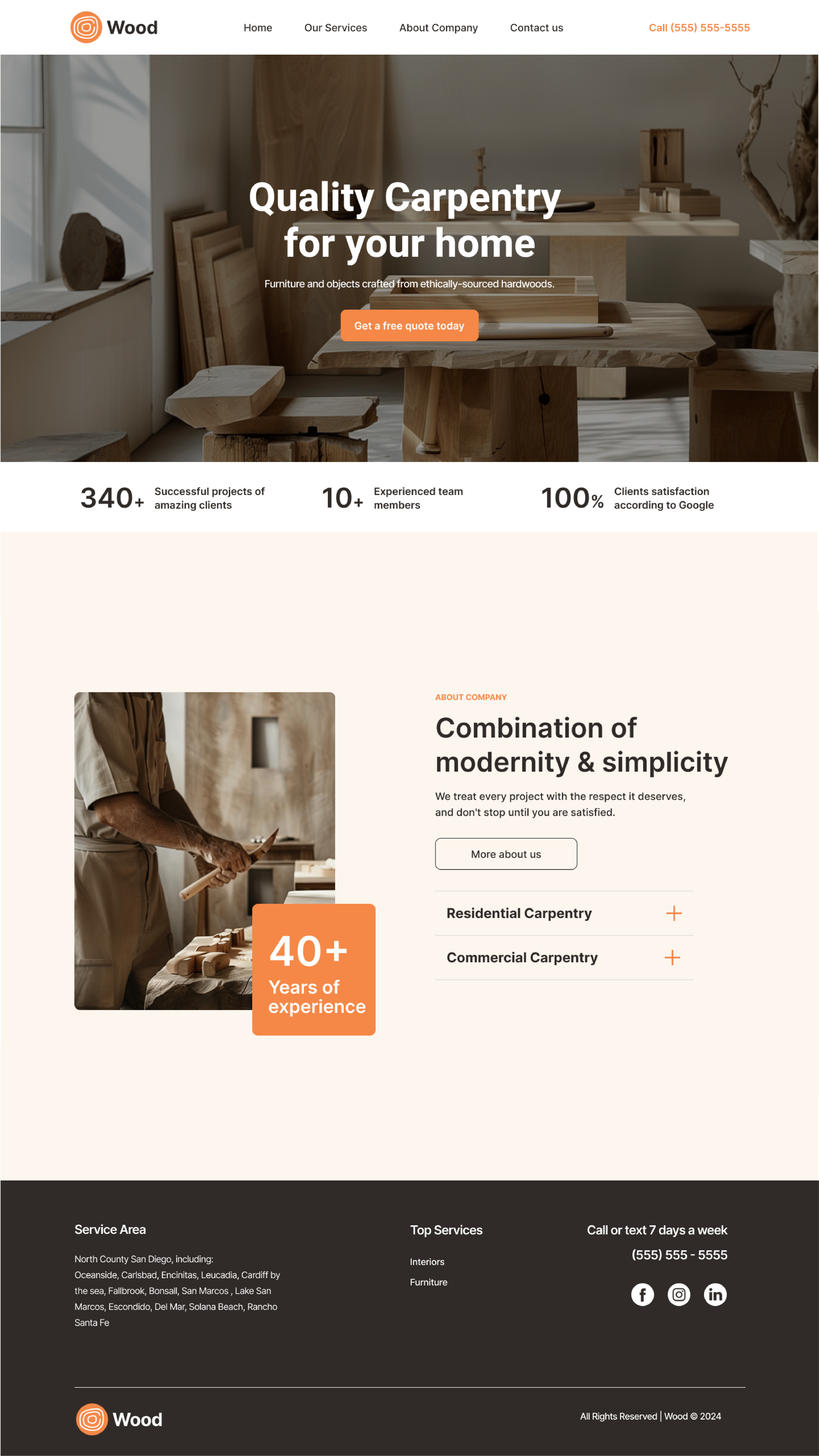
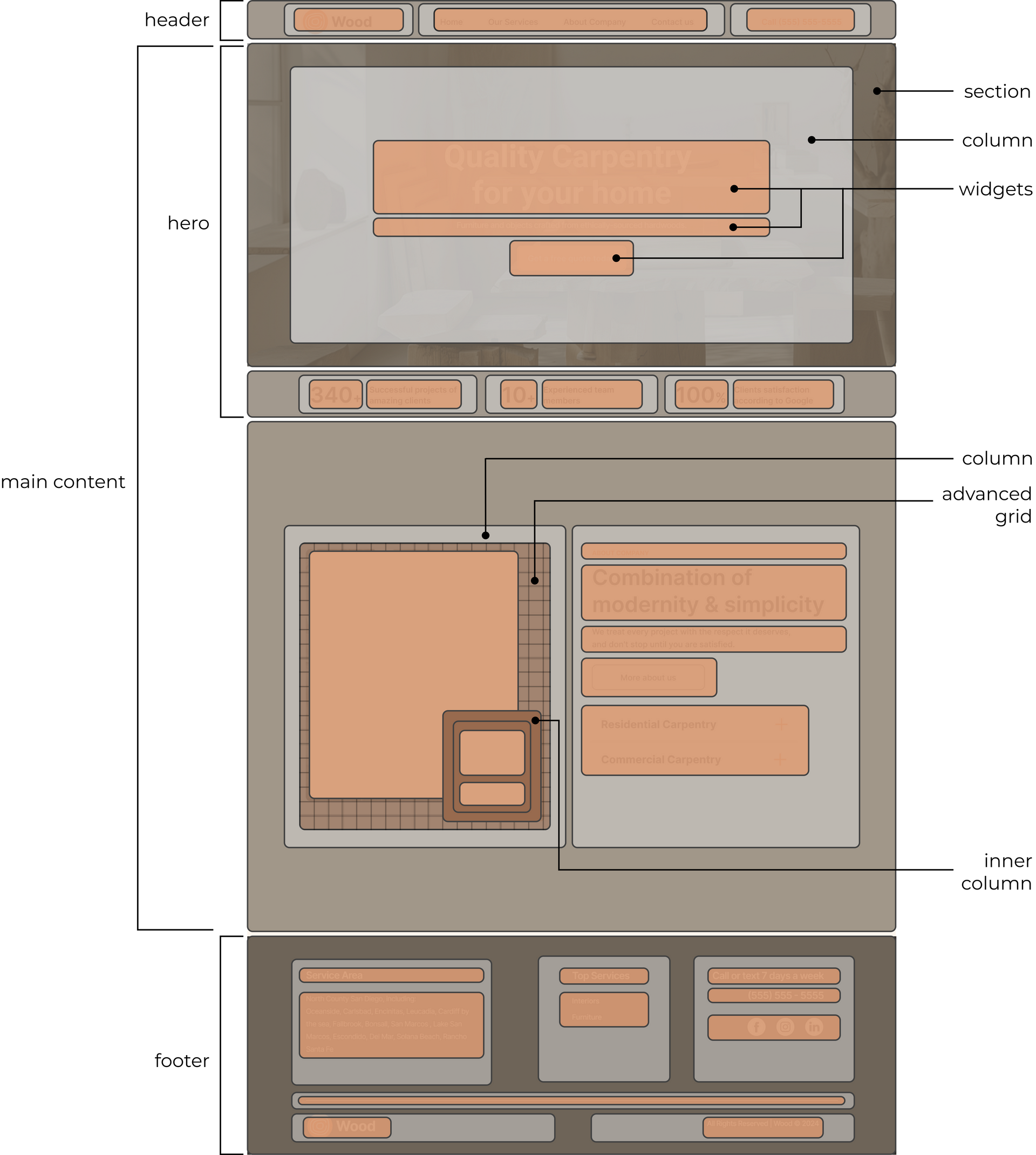
The visual on the right illustrates how the components on the left are nested within each other, including sections, columns, and widgets.
- Sections:
Think of sections as broad containers that divide your page into major areas. They help structure and organize content, similar to how
<body>tags in HTML encompass all the content on a page. Sections extend horizontally across the viewport and organize different parts of your page, such as the header, the footer, and content areas in between.
Adding sections
Most sites you create from the template chooser will already have at least a few sections on the page.
To add a new section:
- Hover between existing sections on the canvas until a prompt appears.
- Click Add Section and choose your preferred layout to insert it into your page.
To delete a section:
- Click on the section and then select the trash can icon from the floating design panel to delete the section.
- Columns: Inside each section, Columns are structures that further organize content. You can use columns to arrange content horizontally or vertically within a section.
Adding columns
Note that every section that you add to a page has at least two columns by default. From there, you can add or remove columns as needed.
To create columns within a section:
- Click the plus icon on the border of an existing column.
- Clicking the icon will insert a new column next to the selected one.
- Widgets:
Widgets are the individual elements you place within columns. They are the specific content blocks, such as text, images, buttons, and forms, that you use to build out your site. Think of widgets as HTML elements (like
<h1>,<p>, or<img>) each serving a specific purpose.
Adding widgets
To add widgets to a page:
- Just drag and drop! Pull the widget you want from the Widgets tab in the side panel.
- Place it wherever you want it within the canvas.
Note: Widgets can be added to columns, inner columns, or advanced grids. See more about layout elements below.