
/CONNECTED DATA
What is Connected Data?
This is paragraph text. Click it or hit the Manage Text button to change the font, color, size, format, and more. To set up site-wide paragraph and title styles, go to Site Theme.
Connected data allows your site to pull in content dynamically from an external source or structured dataset, rather than adding it directly into the site. Whether you’re using internal collections or external databases, connected data makes it possible to create scalable, automated, and personalized websites without manually editing each section. It’s how you go from building one site at a time to deploying many, fast.
Transcript
Helpful Links
Hi, my name is Inbar Amir. I'm a product manager and UX designer here at Duda. We're going to talk about connected data.
Connected data allows you to connect your widgets to content from external sources or from the content library. By doing that, it enables a faster way to build and update sites, because you update it once and it will update across the site. In addition to that, it's also the technology behind dynamic pages. So understanding how connected data works will help us better understand dynamic pages and collections.
To understand connected data better, let's compare it to regular data. Regular data is any kind of data that you enter into the editor. So when you go into your site and update the text widget — the text editor — that's regular data, because it's stored inside the editor and you’re using a native Duda widget.
The same goes for the image widget, the map widget, or any other kind of widget you use directly in the editor when the data is stored in Duda.
When you use connected data, you're basically taking Duda widgets, but instead of entering content into those widgets and storing the data in the editor, you're pulling the data from somewhere else. This could be the content library, your own CMS that you’ve integrated with Duda, or an app that manages your local business data. You take this data and display it on your site.
The way it works is that you have your content outside of Duda, and then you can send it to Duda via API or through the content collection form. This makes it appear in the content library. Once your data is in the content library, it’s easier for Duda widgets to access it and display that data on your site.
You can also go directly into the editor and manually enter content into the content library. Then it works the same: Duda widgets can access it and connect to the content library to display your data on your site.
Every widget has certain data types it can present. For example, the text widget can present anything textual — a paragraph, email, phone number, location, address, anything text-based. The image widget can display a single image or multiple images. The map widget can display a location. So there’s a mapping where every widget has certain data types that it can display.
Connected data is really great for updating repeating elements across your site. Let's say you have a phone number that appears in your header, your footer, your contact page, and several other pages. Instead of updating it on each page — risking typos or inconsistency — you can update it once in the content library and it will update across your entire site.
It’s really good for updating data across your site, and if you want to reset your site without losing content library information, you can select Reset Site and Keep Data. Then you'll get a new site, but all your content library information will remain.
Help Center
To really understand the value of connected data, it helps to contrast it with regular data.
Regular data vs. Connected data
Regular Data is
static.
It lives directly inside the site and must be manually updated in each location where it appears. This works fine for small, one-off websites, but quickly becomes inefficient if you’re managing multiple clients or pages with similar content structures.
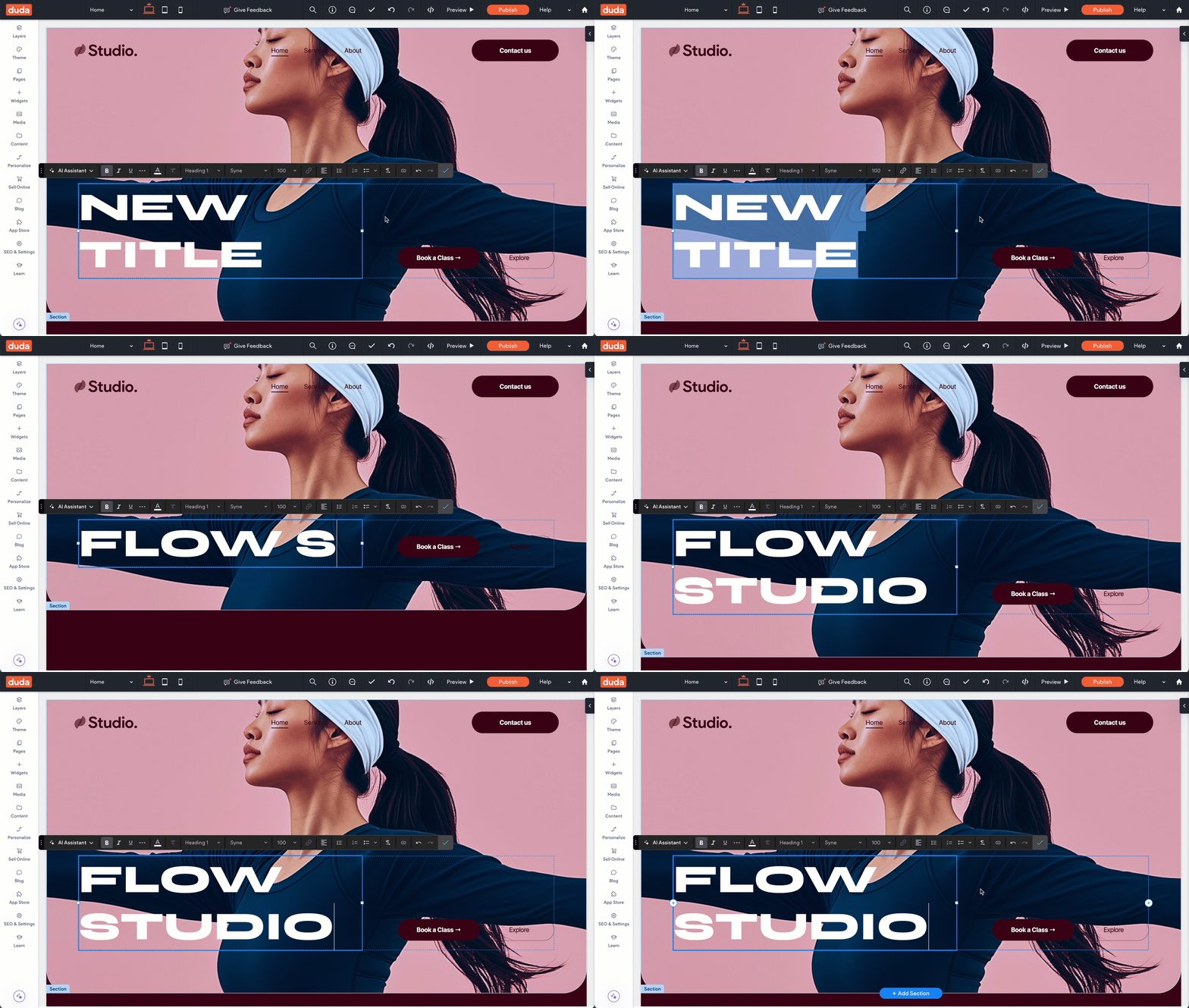
The example above shows a basic set up using
regular data, where we’re manually updating a text widget. Just click into the widget, type your new content, and it’s saved instantly. This approach is perfect for static content that doesn’t need to be dynamic or reused across the site.
Connected Data, on the other hand, is
dynamic.
Instead of storing content directly in each widget, you connect them to a centralized data source. That source can be internal (like an
internal collection) or external (like
Google Sheets,
Airtable, or
your own database).* Once connected, updates to the data are automatically reflected on the site—no manual edits required.
*External collections (like Google Sheets and Airtable) are available on
Agency plans and above. Connecting to external databases requires a
Custom Plan.
Unlike regular data, which you edit directly within a widget, connected data must be updated at the source. Because the widget simply “listens” to the data, you can’t edit its content directly. Any change has to happen at the source itself—whether that’s in the Content Library, an external sheet, or a connected system.
This makes connected data a powerful solution for automating updates, scaling content across multiple sites, and delivering personalized experiences with ease.
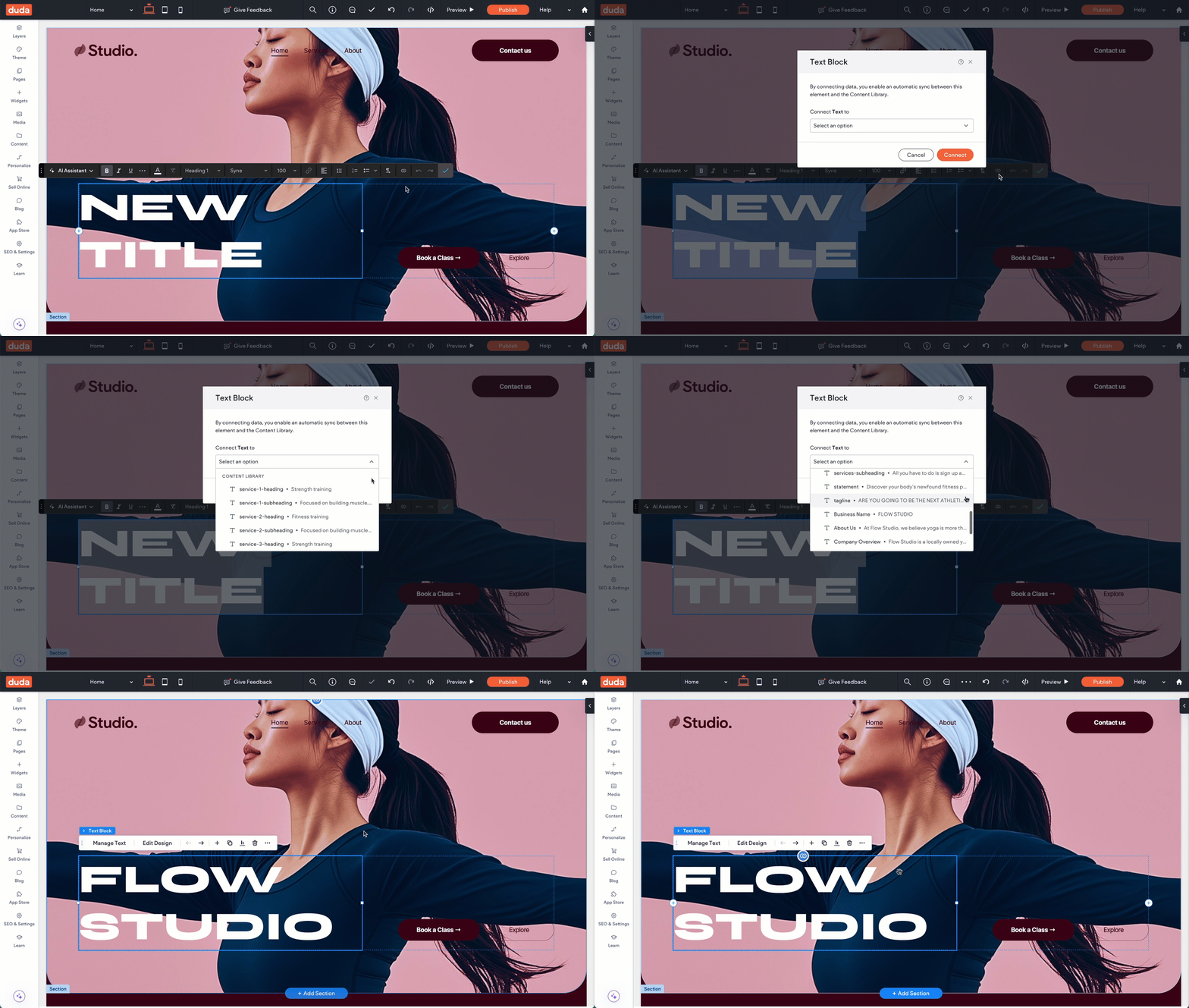
In this example, we're using
connected data—rather than updating the text manually, we're linking the widget to a dynamic content source. Any changes made to the source data will automatically update on the site. This is a key step in making your site reusable and scalable.
This is paragraph text. Click it or hit the Manage Text button to change the font, color, size, format, and more. To set up site-wide paragraph and title styles, go to Site Theme.
Try it out.
Ready to see it work? The best way to understand Connected Data is to dive in. Try this simple, hands-on exercise to see it in action:
- Open the Duda Editor
Create a new site using any site template (or use a site that already exists in your Site List). - Create the data
From the left sidebar:
Click Content.
Open Connected Data (CMS).
Select Business Info.
Find the email field and enter your email address. - Connect the data
Now navigate to the homepage and add a text widget. Right-click the new text widget, click Connect to Data, and insert the email address field. Make formatting changes as necessary. - Preview your work
Click Preview and be proud! You're using connected data already!